
Codex's Two Kinds of Memory: AGENTS.md and Automatic Memories
On this page
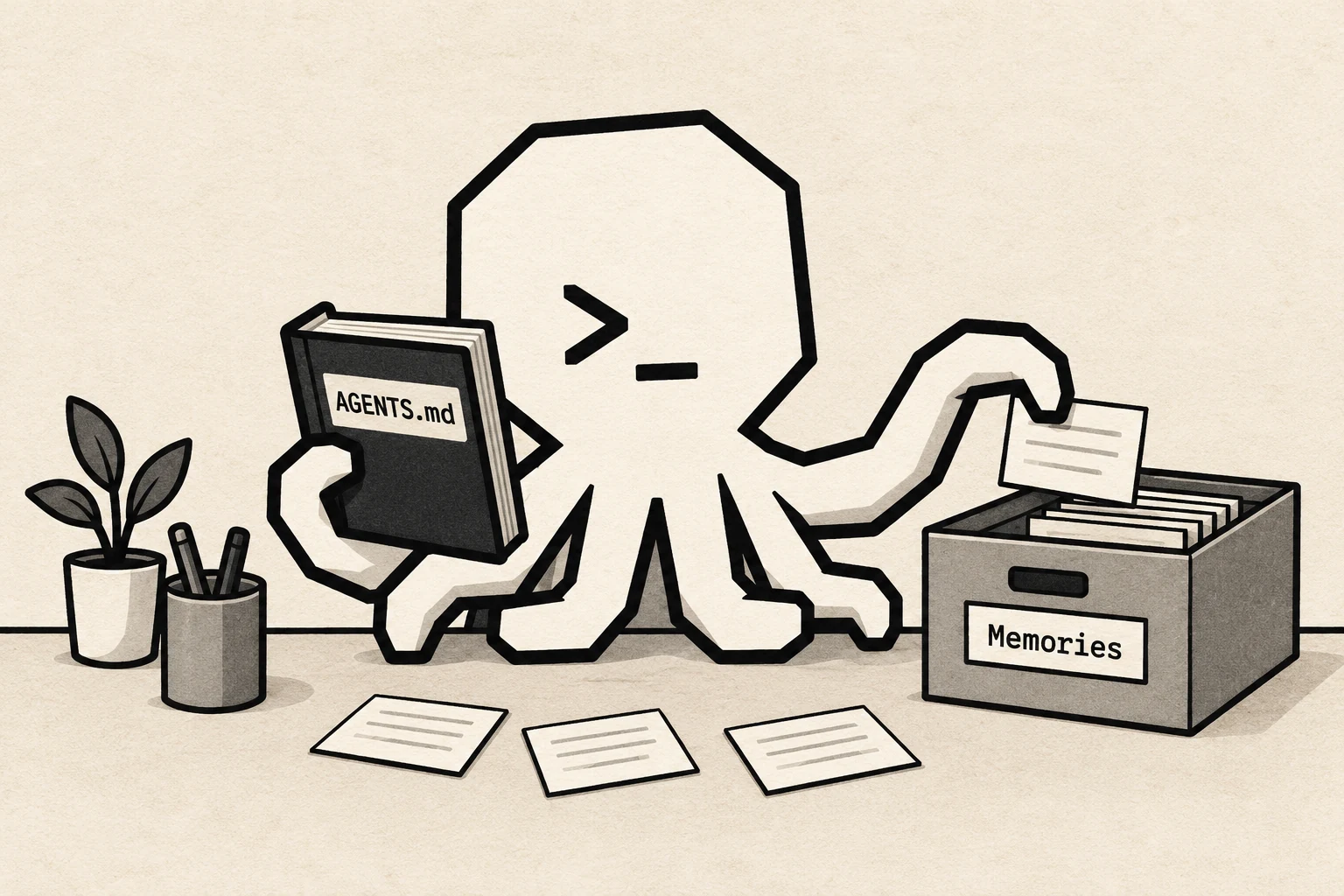
Written instructions and recalled context serve different jobs.
Start a new chat and the conversation starts over. Persistent instructions and memories can carry project context into the next one.
Claude Code has CLAUDE.md and automatic memory. Codex has a similar split, with AGENTS.md for written instructions and a separate automatic-memory system. The shared idea is to keep rules, preferences and habits in local files, ready to bring into later work as context.
One layer is in your hands; the other is in Codex's.
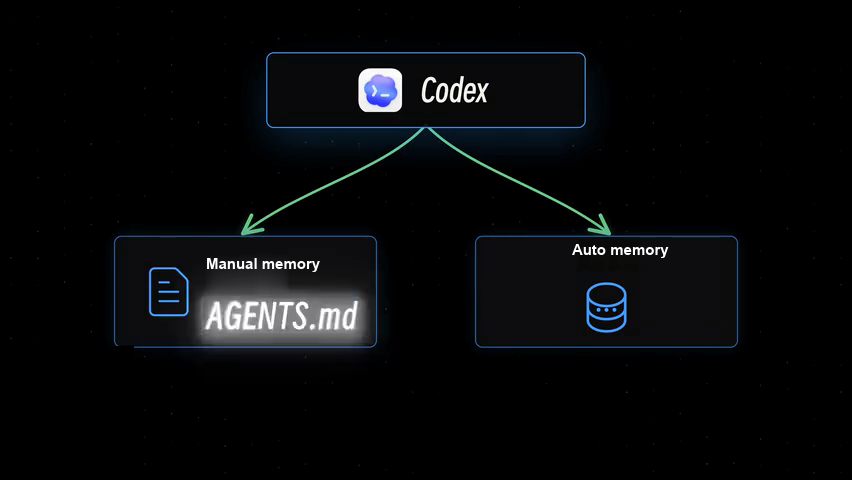
Two kinds of memory coexist: one you write yourself, one Codex maintains. They are distinct: persistent written instructions and a separate, optional memory system.
1. Global AGENTS.md: shared defaults across projects
Open Settings > Personalization and look for your personal instructions. In Codex, they're stored in the global AGENTS.md, normally at ~/.codex/AGENTS.md on the selected machine. They give your projects a shared starting point; more specific guidance can override them.
You can type the rules in there yourself. It's often easier just to tell Codex what you want.
Say you want changes in Google Docs to use a distinctive text color and strikethrough, leaving the original wording alone. Tell Codex that, then add: “Save this in my global AGENTS.md.”
Once Codex says it's saved, go back to Personalization and check that the new rule is there.
Then put it to work. With a document connection that supports color and strikethrough, send Codex a link to a Google Doc that already has comments, and ask it to revise accordingly. Purple text, strikethrough, the original still visible—that's the result you're looking for.
Global guidance is for the big rules that hold across tasks: your working habits, the language you want replies in, and how you want document edits marked up.
2. Project AGENTS.md: rules for this project
A project-level AGENTS.md applies to that project. Switch projects and those rules don't come with you.
Open the editor in a project chat, create an AGENTS.md and write down the rules for that project. Or ask Codex to write it for you.
One suggestion about timing: let the project get some substance first, then ask Codex to draft the guidance from what it knows about the work. In an empty project, there isn't much to sum up.
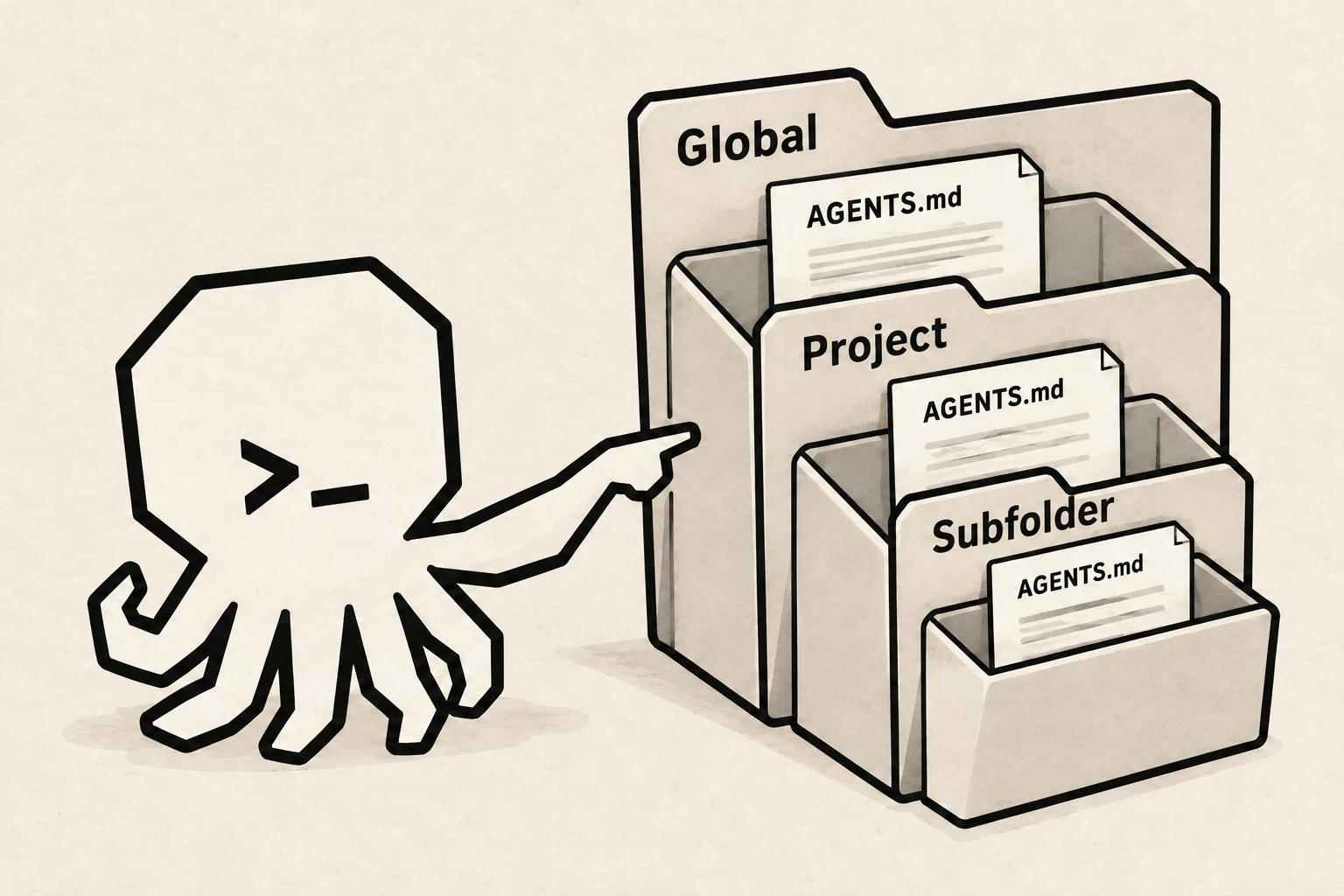
The octopus mascot pointing to folders labeled Global, Project, and Subfolder.
3. Automatic memories: off by default, with a few conditions
Under Personalization, turn on Enable Codex memories if it's available. It's off by default.
Once a chat has been idle long enough, Codex can summarize useful context from it and save that as local memory in the background.
There are a few catches.
First, active and short-lived chats are skipped. Second, summarizing uses your quota too, so memory generation can wait when your remaining limit is too low. Third, OpenAI treats the files as generated state. You can inspect them, but hand-editing isn't the recommended main way to manage them.
By default, under ~/.codex/memories/, you'll find summaries and supporting records: where earlier work came from, the project or working directory, your preferences, and useful lessons or pitfalls. The format can vary, and a keyword doesn't guarantee recall.
Codex handles writing and retrieving this material. It isn't a particularly friendly format to edit by hand, so let Codex maintain it.
4. Give the two layers different jobs
The split is simple.
Put explicit rules and requirements in AGENTS.md. Write down how you want the work done, and choose global or project guidance according to how widely the rule should apply.
Let Codex handle what automatic memory extracts and retrieves. Use /memories to manage what a chat can use or contribute; the settings also provide a full reset.
Take it a step further and organize AGENTS.md in layers: global guidance for how you work, project guidance for that project's agreements, and a layer in a subfolder when the work there needs narrower rules. With those layers in place, it starts to feel more like an assistant that knows how you work and can pick up different kinds of jobs.