Voice Input at Your Desk: One Mic, One Stand, Four Keys
Contents
A blank document can be harder to start than a conversation. If talking helps you find the words, try speaking a rough version and having an AI help organize it into a draft you can review.
The desk arrangement can be small: a compact microphone secured to an adjustable stand, positioned near your mouth, and a four-key programmable pad beside your keyboard. Your computer receives the audio; the software handles recording and text. The pad provides controls only for actions you've actually configured.
The point of the arrangement is to keep the microphone and controls in comfortable, repeatable places. It doesn't require a particular matchbox-sized mic or a fist-width gap; the useful position depends on the microphone and how you sit.
If You Don't Know What to Write, Have It Ask You
Start by giving the AI a topic and asking it to interview you with a few questions. Answer aloud, then ask for the structure you need: an outline, a requirements draft, or a list of unresolved points. That gives you something smaller to begin with than composing a whole document.
For example, suppose your manager is visiting and you need a competitor comparison and a product requirements document. The questions can draw out what you've observed, which differences matter, and what the proposed feature needs to do. Review the resulting draft before asking a tool that supports presentations to turn it into slides.
The same approach can help when directing an agent. Say the goal, constraints, and intended output, then inspect the request before sending it. Whether speech makes that explanation easier is something you can judge on your own tasks.
The Awkward Part Is Speaking Around Other People
At an office desk, you may hesitate because colleagues can hear you. In a café, you may hold back because the person beside you didn't come to listen to a requirements discussion. A useful input method can still feel uncomfortable in the wrong space.
A headset may already give you a suitable microphone position. A boom mic, an earbud mic, and a cable-mounted mic behave differently, so check the actual device rather than ruling out Bluetooth or wired models as a group. If your current arrangement makes you hold a microphone or lean down toward it, a stand offers a way to keep both hands available.
There are two things to assess: what the recording captures, and what people nearby can hear. Improving the first doesn't automatically settle the second.
Bring the Microphone Closer—and Keep It There
The stand's job is straightforward: put the microphone in a useful position near your mouth and hold it there.
That can remove a small recurring interruption. You don't have to keep picking up a phone, holding a cable mic, or finding the same position again for every sentence. Adjust the stand to your usual posture so you can reach the recording position comfortably.
With an appropriate microphone and placement, moving closer can improve the balance of your voice against background sound in the recording. It may let you speak more softly while retaining a usable signal. The microphone doesn't absorb your voice from the room, though; normal speech can still reach a neighboring desk.
Try softer speech with the microphone and transcription software you intend to use, then inspect the words. A whisper is still audible sound, and moving closer doesn't guarantee the recognizer will understand it. Getting too close can also introduce breath noise, popping consonants, or extra bass with microphones subject to proximity effect. Use a position that produces a clear draft without making you strain to stay there.
Three Other Desk Details
- Noise reduction: if your microphone or software offers it, compare the same short passage with it on and off. Check the transcript as well as the sound; processing that removes noise can also damage parts of your speech.
- An adjustable stand: at home or at work, choose the height and angle for your posture. A taller stand helps only if it puts the mic where you need it. Readjust when you change position.
- An unobtrusive shape: a small, plain stand may fit more comfortably among the monitor, cup, and charging cables. That's a preference about your desk, not a way to make spoken words private.
Four Keys
A programmable pad sends the key combinations or commands you assign. Before buying or configuring one, check which controls your recording application actually exposes. These are four useful configuration goals:
- Record: hold to speak if the application supports that behavior; otherwise use its supported start and stop controls.
- Cancel: discard the current recording or draft, according to the application's available command.
- Confirm: accept or insert the reviewed text, if that action can be bound. Keep it distinct from sending a message.
- Request a language version: invoke a supported language workflow, or keep this as a separate manual step if there is no command to bind.
Put the pad within easy reach of your usual typing position. Then test each mapping in the actual application: what does cancel remove, where does confirmed text go, and does any key send it? If an action has no supported mapping, use its visible control. A four-key pad doesn't add a missing software capability.
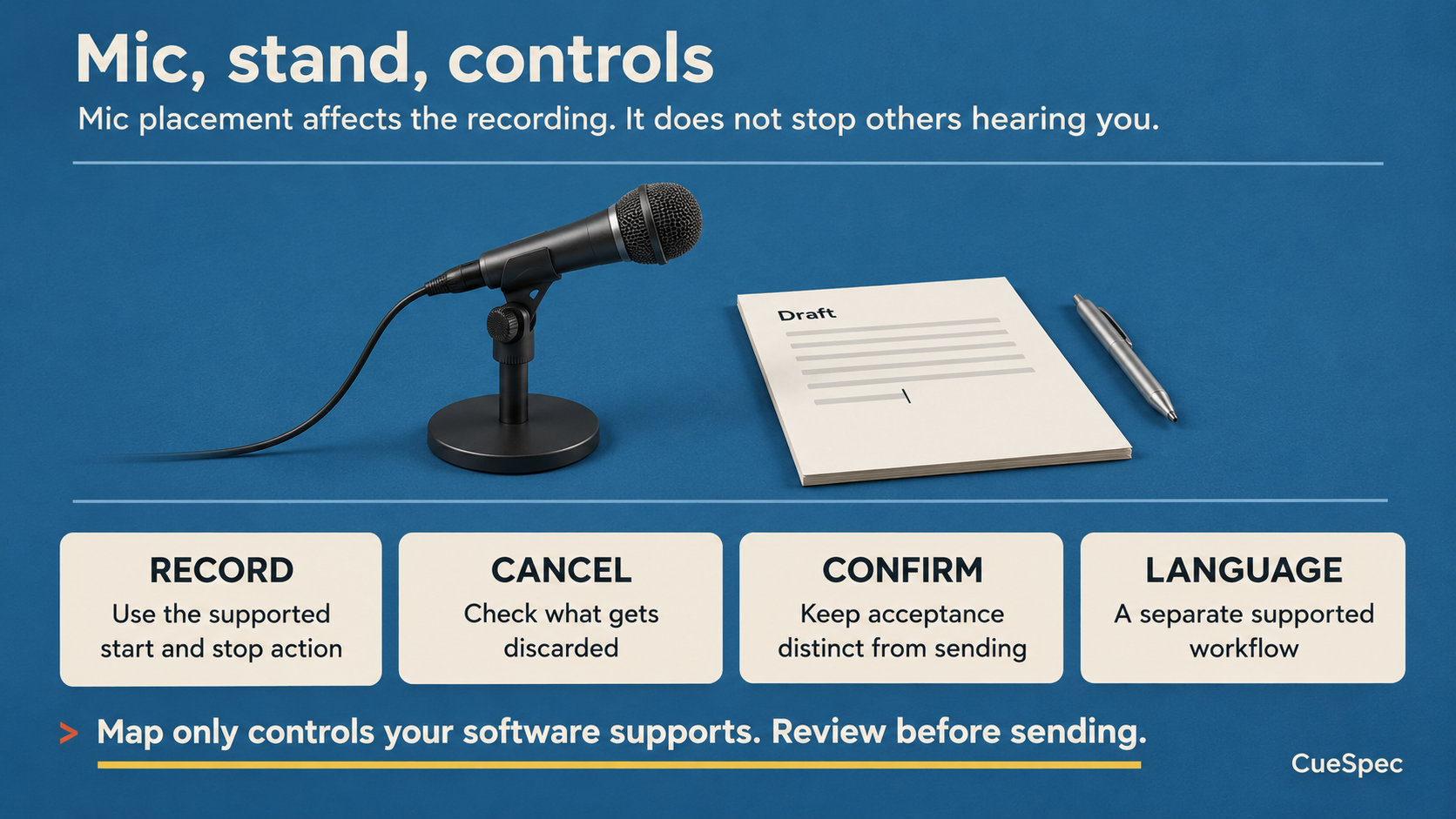
Map only actions the software supports, keep acceptance distinct from sending, and review the draft. Mic placement does not stop others from hearing.
View full-size illustration
The Fourth Action Addresses a Different Kind of Friction
Suppose you're thinking in English but need to write an email in Spanish. You could dictate the meaning in English first, then request a Spanish version through a language service or capable agent and review it before use.
For a concrete CueSpec Mac route, record into a local draft, inspect it, and explicitly send the reviewed request to the same selected Codex conversation. Ask the agent there to prepare the language version. Translation is work you request from that agent, rather than a built-in four-key translation feature of CueSpec. This route doesn't assume text can be injected into any application field.
That lets you work on “What does this paragraph need to say?” before tackling the wording in the other language. Check that the resulting version preserves the details, conditions, and tone you intended.
Leave Some Freedom to Change Position
The arrangement is worth trying for notes, first drafts, and longer replies if it makes speaking and reviewing convenient. Keep the microphone stable, the controls close, and a place to inspect the text.
Changing posture still changes the mouth-to-mic relationship. If you lean back, move the stand as needed and check the result. Comfort comes from an arrangement that follows your position, rather than a requirement to sit rigidly or a promise that reclining improves the work.
Even very soft speech remains sound. Transcription can be local—CueSpec's Mac draft route doesn't require a CueSpec Server connection—while optional refinement or a downstream language service can need a connection and its own configuration. Those software stages are separate from the room around you. Use the setup where speaking is appropriate, and choose typing or a private space when the words shouldn't be overheard.