
Generate Flowcharts with AI: A Cursor and draw.io Workflow

Contents
AI can write the connections and layout for a flowchart, saving you some of the dragging and dropping. The combination here is Cursor and draw.io. The draw.io editor is free; Cursor and its AI usage have their own limits and possible costs. Here's the workflow, from installation through generating a diagram from a document, rebuilding one from an image and adapting a template.
What Is draw.io, and How Do You Install It?
draw.io is a free diagram editor available across platforms. You can use it for business processes, organization charts, mind maps and network diagrams. Its shape libraries and editing controls give you plenty to work with without having to draw every element yourself.
On the draw.io desktop project's GitHub Releases page, open Assets and choose the installer for your operating system. Follow the installation steps for that package. The editor has three main areas: shapes on the left, the canvas in the middle and properties on the right. You can build a diagram by dragging shapes around. The next step is to let AI do some of that manual work; how much it saves depends on the diagram.
Let Cursor Read and Edit draw.io Files
Create a .drawio file and open your working folder in Cursor. The editing extension used for this approach is Draw.io Integration, the third-party project by hediet, identified on the Visual Studio Marketplace as hediet.vscode-drawio. Search in Cursor's Extensions panel and check the publisher and compatibility before installing: Cursor uses Open VSX, where the same ID need not identify the same publisher or code. With a compatible extension, you can open the diagram visually as well as edit its XML.
Example One: Turn a Text File into a Flowchart
Put the document in your working folder. If you have already configured the sequential-thinking MCP tool, you can use a prompt like this: “Based on @engineering-rules.md, use the sequential-thinking MCP tool to organize the content into an XML flowchart and create a new .drawio file. You can generate the code in batches to avoid an oversized single response.” Naming that tool in a prompt doesn't install or enable it.
Cursor can write the XML for the diagram. Open the saved project in draw.io and look through its pages if the output contains more than one. If text is hard to read against the background, adjust the theme or text colors. The generated file remains editable, so you can correct the diagram there.
To export an image, choose File → Export as → PNG or JPEG. For PNG, the export dialog's Zoom setting can be set to 200%, for example; choose the page or other export bounds you need and export. That's an image-size option, separate from zooming the editing canvas.
Example Two: Rebuild a Flowchart from an Image
An image can be the starting point too. Perhaps you have a useful reference diagram and want an editable version without placing every box from scratch.
Save a reference image you can use as test.jpg, then give it to an image-capable model in Cursor: “Based on the flowchart in @test.jpg, write an XML version that follows its elements, connections, styling and layout as closely as possible. Create and save a new .drawio file. You can write the code in batches to avoid an oversized response. Open the saved diagram and check that it was created successfully.”
Open the result in draw.io. Rebuilding the elements and relationships is the goal, rather than a guarantee of an exact copy. Lines, connection points and text positions may need adjustment. For a diagram you are allowed to reuse—including a chart from a presentation—this can reduce the amount of redrawing. The saving depends on the image and its complexity.
Use Templates for a Batch of Diagrams
Templates take the idea further. A collection might include business flowcharts, organization charts, project management processes, system architectures, mind maps and Gantt charts. Open a template in draw.io and edit it directly.
For a payment-process example, open the template's XML, save it as a .drawio file and place it in Cursor's working folder. Then ask: “Use example as the reference for style, visual treatment and icons. Write a financial flowchart for making a payment, generate the XML and create and save a new .drawio file. You can write the code in two batches to avoid an oversized response. Open the saved diagram and check that it was created successfully.”
To request a change, take a screenshot and circle the relevant area: “Add a more detailed description to the marked module.” If that produces a crowded result, refine it: “Add a more detailed description to the marked module. Keep its layout from overlapping other modules, and don't change the code for the other modules.” Add a dashed connector manually if needed. For a batch with three more templates, send their screenshots in turn and request the same kind of additions without disturbing unrelated modules. Finish the details in draw.io, arrange the content on one page and export the image.
Reusing that process can make a batch easier to handle. Its throughput still depends on how much content, layout work and correction each diagram needs.
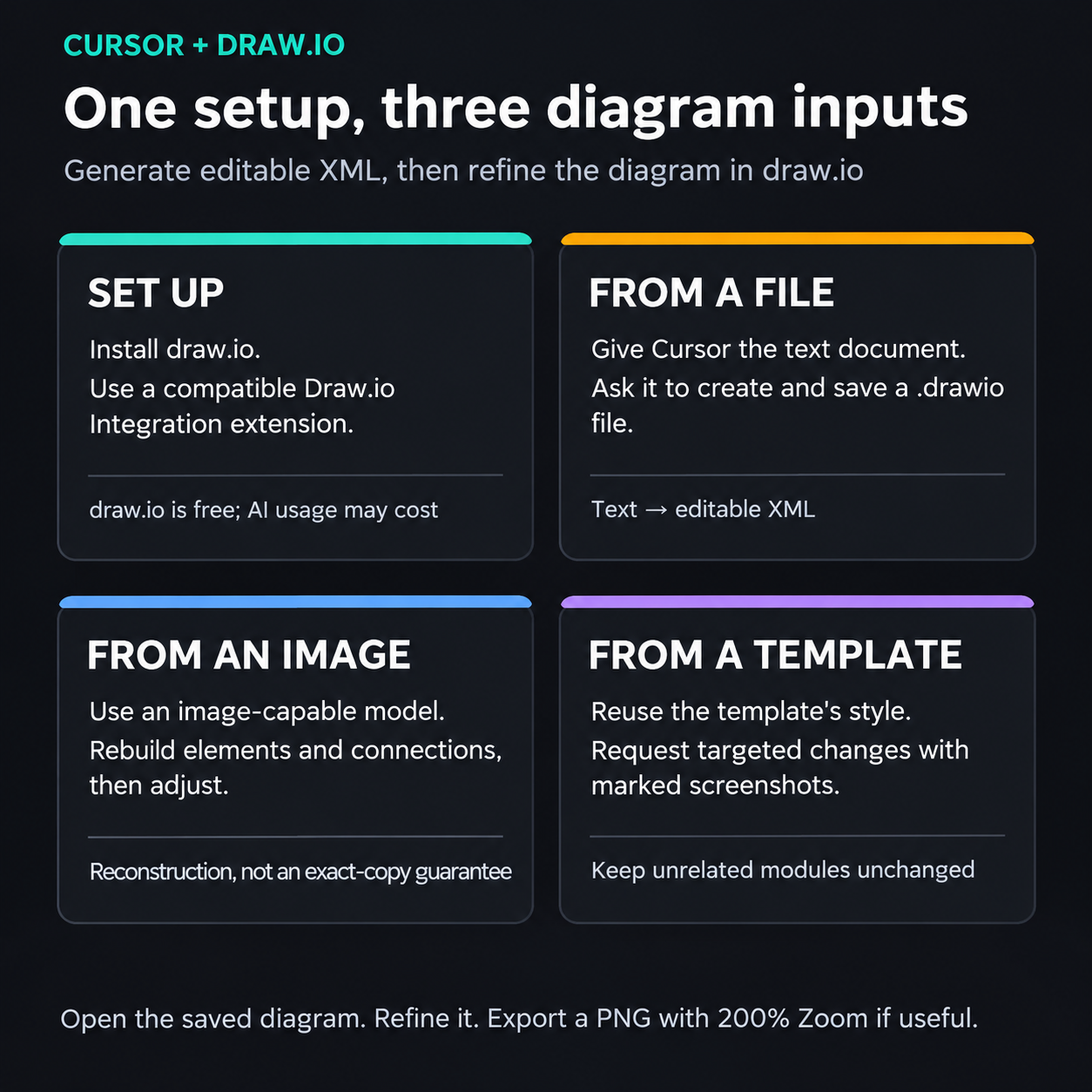
Cursor generates editable XML from a document, image or template. Open the saved diagram in draw.io, adjust it and export an image; 200% is an optional PNG export Zoom setting.
View full-size illustration
What Makes the Workflow Useful?
Installation, basic editing, generation from text, reconstruction from images and template reuse form a complete path from an input to an editable diagram.
The value comes in three parts. Time saved on manual drawing is time available elsewhere. A clear diagram can make a proposal easier to explain. And combining an AI tool with an established editor is a useful working method in itself. Managers can map team processes, product managers can show product logic and developers can illustrate system architecture. The result still needs to communicate the right thing, whichever role is making it.