Once the Task Is Running, You Have Two Jobs: See What's Happening and Steer It Back
Contents
Once a job takes more than a few minutes, your role changes. You go from asking the question to keeping an eye on the work.
At that point, a better prompt isn't the whole answer. In Codex, you need to see what the agent is doing and have a way to bring it back when it goes off track.
Let It Work on Several Things
You can open several chats in the same project. Each has its own conversation context, but they can all access the same folder.
So one chat can install tools while another works on a video edit, provided the jobs don't interfere with each other's files or dependencies. Sharing a folder doesn't isolate them: coordinate changes to the same files, or use separate worktrees where appropriate.
The task list helps you tell where each line of work stands. Look for three kinds of status:
- Running: The agent is working.
- Finished: That run has ended.
- Needs approval: It's waiting for you to make a decision.
Those states give you a quick view of what needs attention. Read the actual status rather than assuming an unread-update dot means completion; a finished run still needs you to look at the result. Learning to read that little dashboard can be useful before you've learned to write a brilliant prompt.
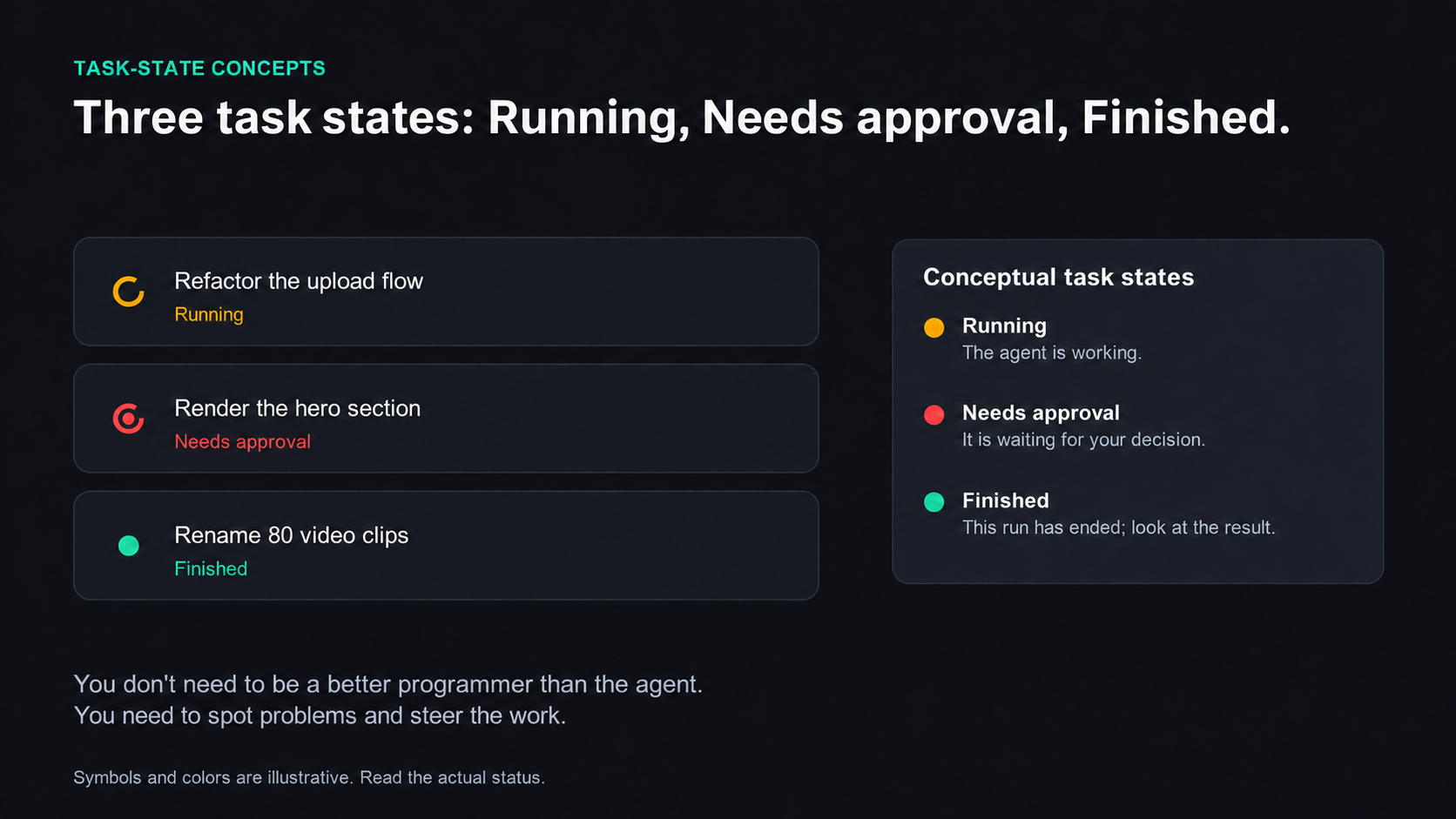
Symbols and colors are illustrative; read the actual task status and review the result.
View full-size illustration
For Complicated Work, Look at the Plan First
If the task is complicated, or you haven't quite worked out what you want, switch to plan mode.
It can start by asking for details: Who is this homepage for? Should it include a photo of you? Answer those questions, then work through the full plan.
You can still add requirements after the plan appears. If “use more images” hasn't made it into the proposal, say, “Use more images on the site. Generate polished visuals with an image model,” then send it back. With that requirement added, the agent can revise the plan.
Agree on the plan before it starts making changes. That little tap on the brakes costs less than redoing the work afterward.
Take the Wheel While It's Running
This is one of the most overlooked parts of the workflow.
A long task is under way. You're watching, and something feels off: the images look good, but they're cold and impersonal. Add a message: “Make it feel more human and warm up the colors. I'm an AI blogger.”
With Queue, that message waits for the next run. Whether follow-ups queue by default depends on your settings; you can change that behavior.
With Steer, the message goes into the current run instead. You can correct the direction without waiting for the whole turn to finish.
That difference matters. A queued correction can sit there while the agent keeps spending its allowance on the wrong direction. Steering gives it a chance to use the correction while the work is still in progress, rather than saving it for another full round.
Fork from an Earlier Point
There's another light-touch option: fork.
Suppose the earlier part of a conversation is useful, but everything after one particular reply has gone sideways. Branch a new chat from that reply and try another direction. You're branching the conversation, though, not rolling back files it has already changed.
Give Feedback on the Finished Page
With the built-in preview browser available and access to the page, open the result and look at it. Use the annotation tool to select an element and leave a comment: “Make this logo bigger.” “Add a person to this image.” “Remove this.”
Send several annotations together, and the agent can work through those changes.
One Last Thing
Put these moves together and they're all parts of the same role: run a few lines of work → read their status → review the plan → steer during the run → branch from a useful point if the conversation goes off course.
You don't need to be a better programmer than the agent. You need a clearer idea of whether this version is right, and a way to take the wheel before it gets too far down the wrong road.