Turn a Screenshot and Spoken Feedback into a Clear UI Request
Drafted and reviewed using AI assistance.
On this page
Pair each piece of spoken UI feedback with a visible region, a requested change and a result you can check. A screenshot shows where the problem is; a numbered list explains what you want the interface to do.
This gives an AI coding tool a more useful task than “make it cleaner.” It also helps you keep the good parts of a page while changing the few things that interrupt the workflow.
Give the picture a small map
The diagram below is an original fictional task interface created for this guide. Its numbers identify regions for discussion; it is not a screenshot of CueSpec or a deployed product.
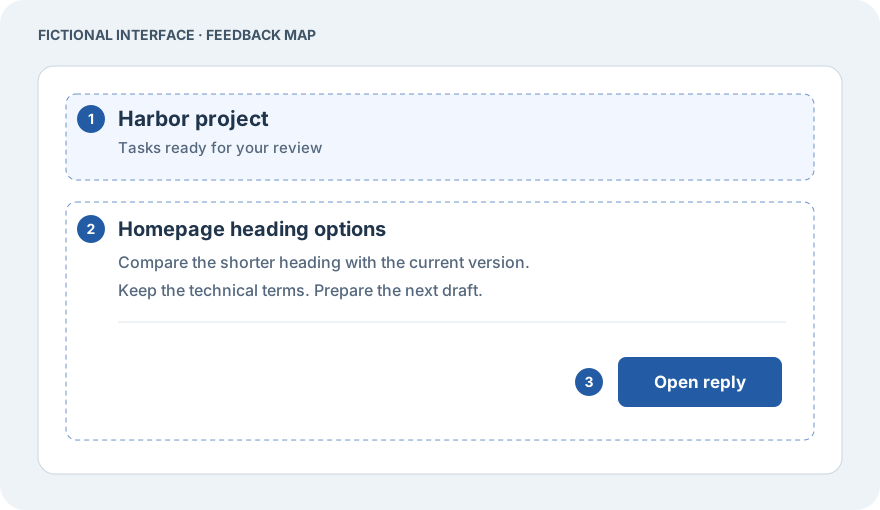
Use the same numbers in the written request:
| Region | What it identifies | Feedback belongs here when… |
|---|---|---|
| 1 | Project heading | You want to change hierarchy, spacing or navigation context |
| 2 | Task card | You want to change the task's information, wording or layout |
| 3 | Reply action | You want to change the action label or its behavior |
For your own page, crop to a useful area while retaining enough surrounding context to locate it. If the image contains private work, replace or remove those details before sharing it. A number is a discussion aid, not an exact pixel coordinate; responsive layouts may move the same element elsewhere.
Copy this feedback template
Page and state:
[Which screen is open? What has the user just done?]

Reference:
[Attach the relevant image. Identify numbered regions.]

Goal:
[What should become easier for the person using this screen?]

1. Region [number]:
   Current: [...]
   Requested change: [...]
   Check: [Observable result.]

2. Region [number]:
   Current: [...]
   Requested change: [...]
   Check: [Observable result.]

Preserve:
[Useful behavior, content or visual identity that should stay.]

Exact copy:
[Paste literal text separately from general style direction.]

Scope of the next step:
[Discuss options / prepare a draft / implement these changes.]
Speak the goal and the reasoning. Type the words that must appear exactly, including button labels, product names and technical identifiers. This keeps a casual phrase such as “something like Open reply” from being mistaken for final copy.
Three complete feedback examples
The following requests refer to the fictional diagram. They show three different kinds of acceptance check: layout, wording and interaction. They do not report completed changes.
1. Spacing: make the heading and first task easier to scan
Page and state:
The project task view, with the first task visible.

Goal:
Make the project heading and task list read as separate levels.

Region 1:
Increase the visual separation between the heading area and the task list.
Keep the project name aligned with the left edge of the cards.

Check:
The first task no longer reads like part of the heading.
At narrow widths, the project name can wrap without overlapping the list.

Preserve:
The project name, task order and existing navigation.

Next step:
Show one proposed layout using the existing typography.
This describes hierarchy rather than prescribing an arbitrary spacing value. If your design system has a relevant spacing token, add its exact name. Otherwise, let the implementation propose a value and inspect the resulting layout.
2. Copy: make the action label match its result
Page and state:
The task card shows a returned answer, ready for the reader to inspect.

Region 2:
Keep the task title and answer preview.

Region 3:
The fictional current build labels this action “Reply”.
It opens a reply editor; it does not send a message.
Change the label to “Open reply”, as shown in the diagram.

Exact copy:
Open reply

Check:
The visible label is “Open reply”.
The control still opens the reply editor without sending anything.
Its accessible name identifies the same action.

Preserve:
The current destination and the draft content.

Next step:
Prepare this wording change with no visual redesign.
The key detail is the difference between opening an editor and sending a message. A shorter or more energetic label is useful only if it describes the real action.
3. Interaction: retain the reply while changing views
Page and state:
The task card is open and the reply editor contains an unsent draft.

Regions 2 and 3:
When returning to the task list and reopening this same task,
keep the draft associated with this task.

Check:
Enter “Keep the current heading.” in the reply editor.
Return to the task list, then reopen the same task.
The draft is present and no message has been sent.
Open another task and confirm that this draft is not shown as its reply.

Preserve:
The separate deliberate send action.

Next step:
Describe the required state behavior and implementation options first.
This is a proposed interaction requirement for the fictional interface. The request gives the builder a way to inspect the behavior later without implying that the feature already exists.
Separate a reference from an instruction
A screenshot can be evidence of the current layout, an inspiration image or a proposed design. State which one it is. “Use this as a reference for grouping” leaves more design freedom than “match these dimensions.”
Likewise, separate three things that are easy to blend while talking:
- Meaning: what the user should understand or accomplish.
- Exact content: the words and identifiers that must appear.
- Presentation: the hierarchy, spacing and interaction that support the task.
For feedback on several screens, keep one numbered map per screen. Ask for a shared rule only when the same behavior should genuinely apply across them.
Review the result with the same map
Return to each numbered item and check its stated outcome. A polished new layout can still miss a requested behavior; a correct interaction can still leave unreadable text at a narrow width. Keep the image, list and checks together so the next review refers to the same task.
If you are attaching the image through CueSpec, its Docs cover adding reply attachments and checking a pasted screenshot. Use the template above regardless of which editor or coding tool receives the request.