
Ask AI to Refine an Existing Deck Without Rewriting Its Content
Drafted and reviewed using AI assistance.
On this page
Give the assistant three things before asking it to improve an existing presentation: the exact content to preserve, the objects it may change, and the kind of result you want back. A layout suggestion, a picture of a slide and an edited presentation file are different deliverables. Choose the route before judging the design.
For a small deck, that might mean keeping every sentence and source label while aligning text boxes, applying a consistent type hierarchy and grouping related information. It also gives you a precise reason to reject an attractive result: a count changed, an unresolved decision became a promise, or the text came back as a picture.
This guide uses a complete fictional three-slide workshop briefing. The six original SVG drawings below show an authored starting layout and a proposed revision. They contain text and rectangles in SVG source. They are static editorial illustrations, not evidence that a native PowerPoint file was edited, that imported SVGs become native text boxes, or that a presentation survived a save-and-reopen cycle.
Choose the route for the change you actually need
Start with the smallest useful deliverable. If you already know that two boxes need aligning, doing that directly may be simpler than preparing an assistant's task. If the problem is deciding how to group information, a proposal can be enough. If you need a changed master file, the output must preserve the object types you expect to edit later.
| Route | Use it when | What you get | What you still have to do |
|---|---|---|---|
| Manual editing in the presentation editor | The affected objects are few and the changes are clear | Direct changes to the master or a working copy | Apply the formatting and compare the result with the original |
| Layout advice or a static proposal | You want help with hierarchy or grouping before changing the file | Written directions, an annotated image or a drawing | Apply the proposal to the master; a preview alone does not establish native editability |
| File editing | You need a revised native deck, and the chosen tool has been checked for the objects this deck uses | A candidate file, if that capability is established | Inspect the returned objects and reopen the saved file in your intended editor |
File editing has an extra dependency: the tool must handle the things your deck contains. For a real file, those might include text boxes, shapes, tables, charts, notes or theme elements. Check the relevant types rather than assuming a successful image preview covers them. This example makes no current software compatibility claim; native file reading, writing and fidelity remain untested here.
The question is motivated by two limited public discussions. One opinion thread about AI slide generators asks about arranging content people already have. A self-reported deck-building thread discusses source selection and keeping a master file; its author explicitly discloses AI assistance in writing the post. These are exploratory prompts for the worked example, with uncertain authorship and possible promotional bias. They establish neither a representative customer need nor measured time savings, tool performance or a preference for speaking slide instructions.
Fix the content before designing the revision
Our fictional coordinator has four source records. They are original teaching materials, with no real event or customer behind them:
| Source | Complete record |
|---|---|
| C1 — Coordinator brief | The workshop has two sessions: Morning and Afternoon. |
| R1 — Request register, row 1 | Morning: 3 seats requested. |
| R2 — Request register, row 2 | Afternoon: 2 seats requested. |
| D1 — Decision log, item 1 | Decision needed: confirm trainer. Current trainer status: Unknown. |
T1 is the manual derivation 3 + 2 = 5 seat requests across the sessions. The records do not say whether someone requested a seat in both sessions. Five seat requests therefore cannot be relabeled as five distinct people, five attendees or five confirmed bookings.
Here is the entire slide copy, fixed before the drawings were made. Each row is a separate text object in both illustrated states. The IDs make it possible to discuss one object without relying on “the text on the right.”
| Slide / object | Exact text | Source |
|---|---|---|
| 1 / s1-title | Workshop overview | C1 |
| 1 / s1-sessions | Two sessions | C1 |
| 1 / s1-total | Five seats requested in total | R1, R2, T1 |
| 1 / s1-source | Sources: C1; R1-R2; T1 | C1, R1, R2, T1 |
| 2 / s2-title | Seat requests | R1, R2 |
| 2 / s2-morning-label | Morning | R1 |
| 2 / s2-morning-value | 3 seats requested | R1 |
| 2 / s2-afternoon-label | Afternoon | R2 |
| 2 / s2-afternoon-value | 2 seats requested | R2 |
| 2 / s2-total | Total: 5 seats requested | R1, R2, T1 |
| 2 / s2-source | Sources: R1-R2; T1 (3 + 2 = 5) | R1, R2, T1 |
| 3 / s3-title | Decision needed | D1 |
| 3 / s3-action | Confirm trainer | D1 |
| 3 / s3-status | Current status: Unknown | D1 |
| 3 / s3-source | Source: D1 | D1 |
For your own deck, identify the master file and revision as well as the facts behind it. State which source settles a conflict. A screenshot can show where a sentence sits, but it does not by itself reveal whether that sentence is a text box, part of a grouped diagram or pixels inside an image.
Inventory what exists, then specify what may move
The illustrated baseline has 15 text objects and seven rectangles. The proposed state retains all 22 objects. No object is added, removed, merged or duplicated. This is an inventory of the authored SVG model; the native object inventory of a real presentation would have to be observed separately.
| Slide | Existing objects | Proposed treatment |
|---|---|---|
| 1 | Four text objects above; s1-background and s1-panel rectangles | Align both body texts inside the resized panel; align title and source to the shared outer margin |
| 2 | Seven text objects above; s2-background, s2-morning-panel and s2-afternoon-panel rectangles | Align session labels and values in two equal panels; retain the total as a separate text object below |
| 3 | Four text objects above; s3-background and s3-panel rectangles | Place the requested decision and its Unknown status together inside the panel |
Allowed changes are position, box or rectangle size, font size and weight, text color, fill and stroke. The wording, numbers, units, punctuation, source labels, slide order and reading order stay fixed. Text remains text in the SVG source rather than being converted to paths or embedded as a slide image.
The proposed role styles are 48-unit bold titles, 36-unit regular body text and 22-unit regular source captions, on a 1280 × 720 SVG canvas. Those are drawing units, not PowerPoint point sizes. A native implementation would need its own dimensions and text-fitting check. There is no new chart, illustration or completion symbol to carry an unsupported meaning.
Inspect all three before-and-after proposals
Slide 1: give the overview a consistent hierarchy
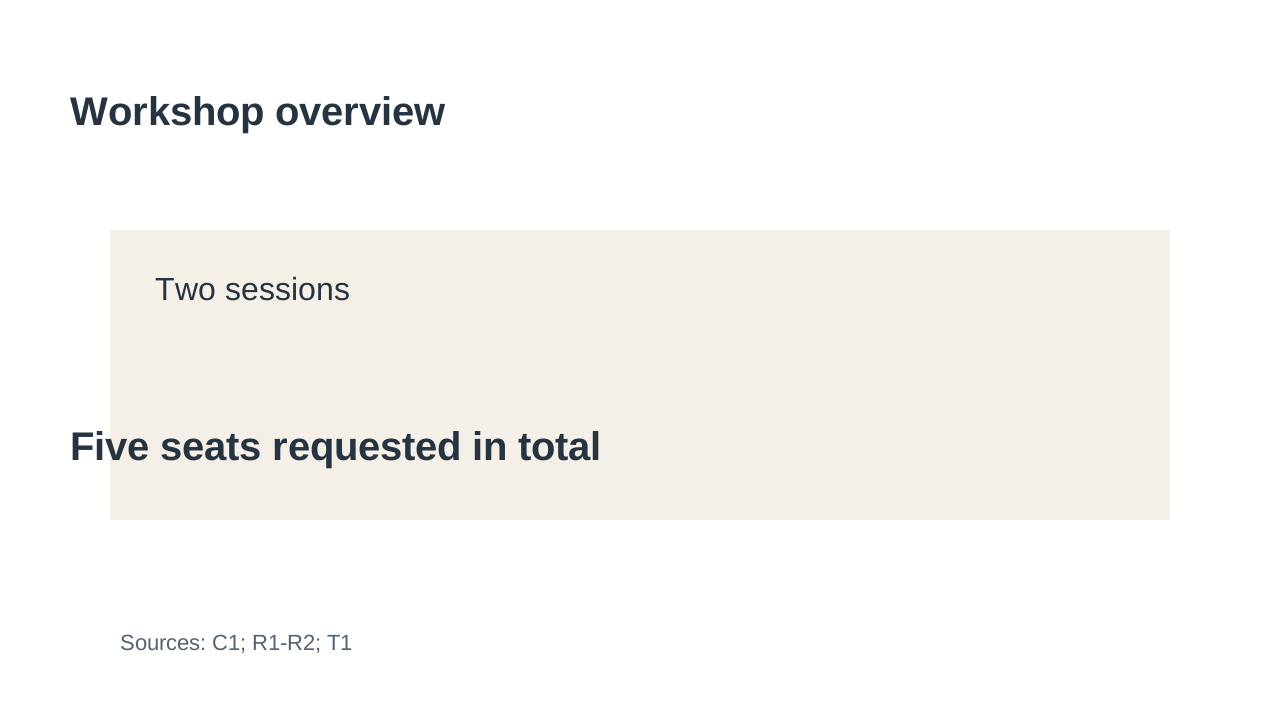
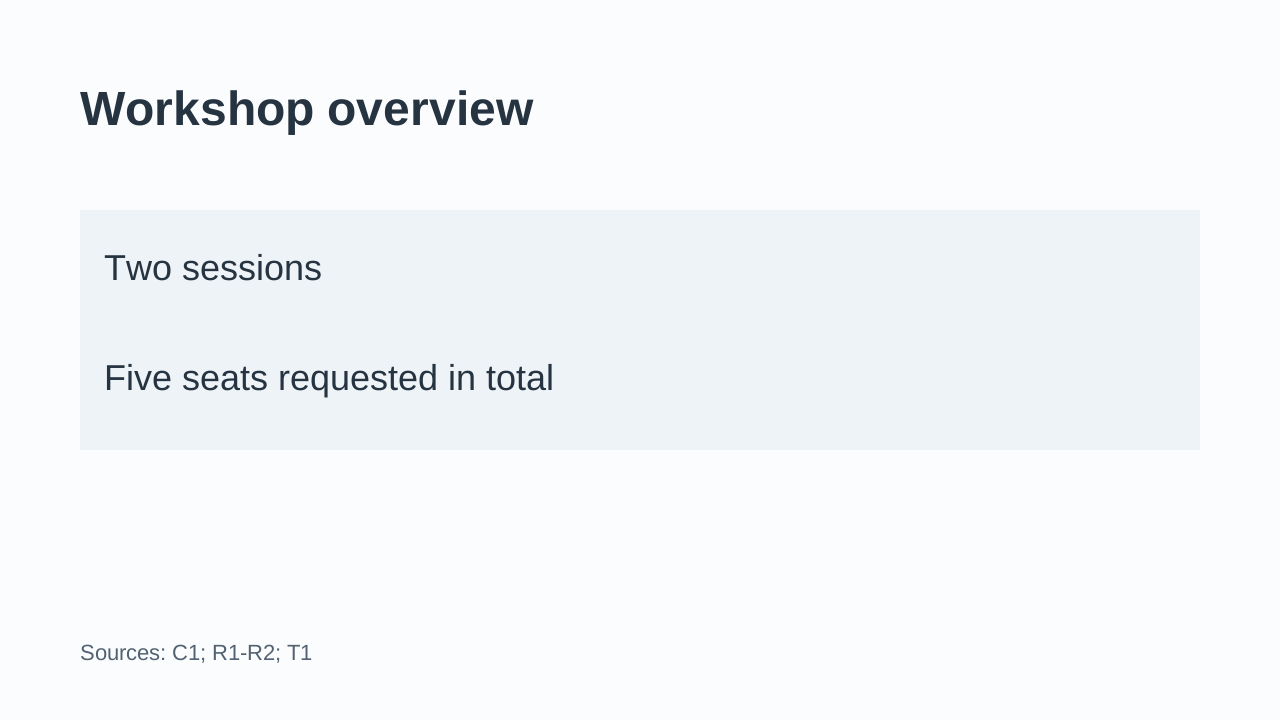
The starting layout uses a different left edge and weight for each body line. In the revision, “Two sessions” and “Five seats requested in total” use the same style and inset. The title establishes the slide topic; the source caption keeps its own quieter role.
No extra agenda, date or attendance claim has been introduced to fill the space. The tradeoff is that the total loses its separate bold emphasis. That is intentional for this overview: the next slide carries the detailed seat requests. If your audience needs the total to dominate, request that hierarchy change explicitly while preserving its unit.
Slide 2: align the session comparison without inventing a chart
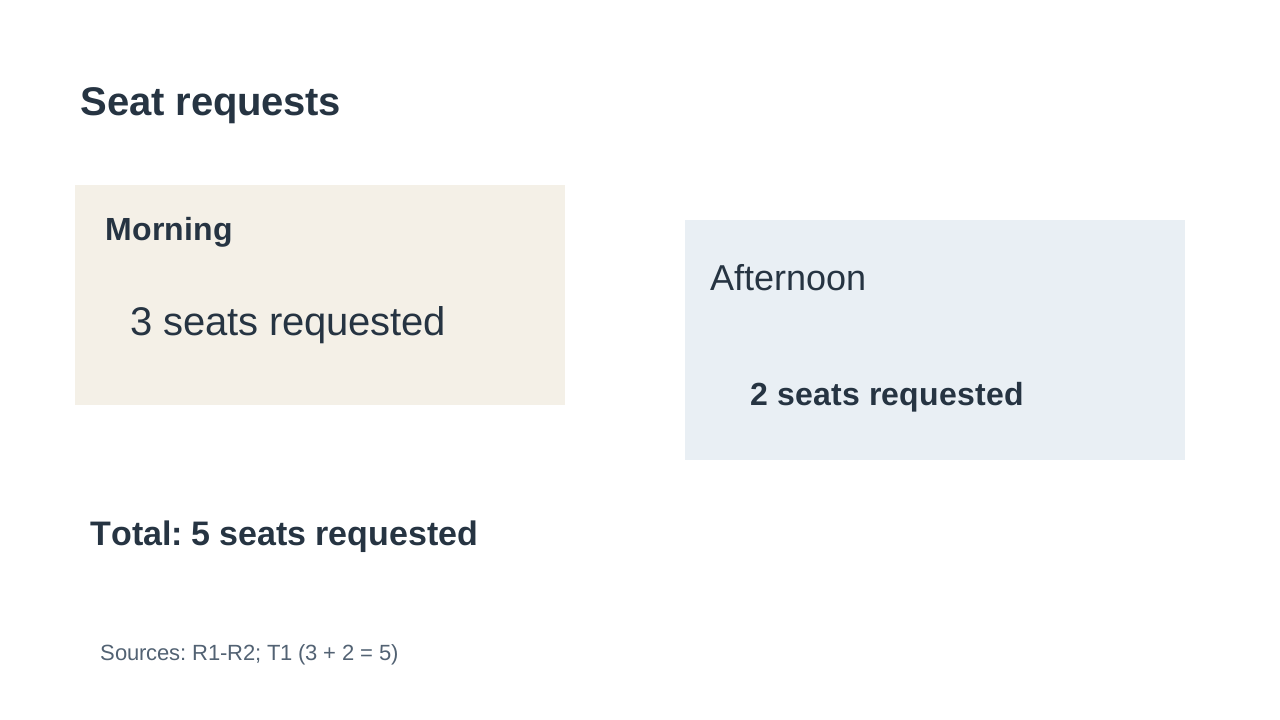
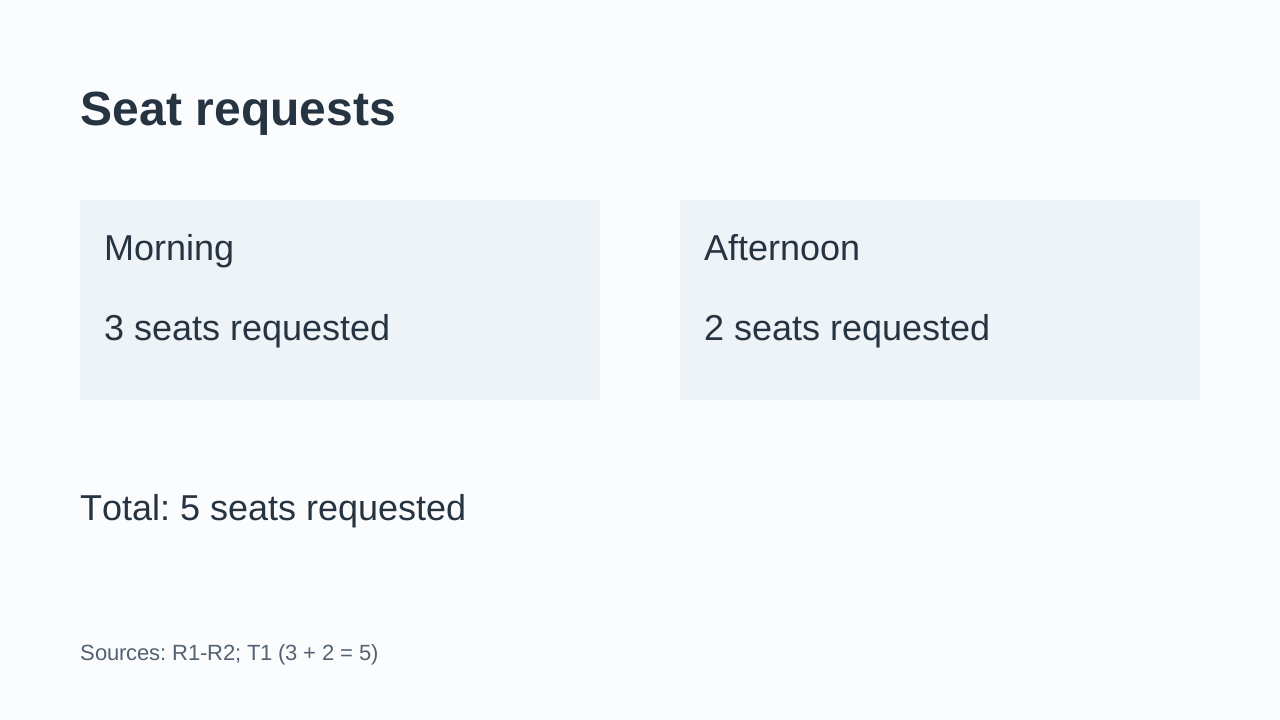
Both labels now share one baseline, and both values share another. Morning remains on the left, followed by Afternoon. The total stays beneath the two groups, with its derivation in the source caption.
The equal panels are containers for records, not bars encoding quantity. Their widths do not represent 3 and 2. A proportional chart would require a different instruction, with an explicit scale and labels. For this small comparison, retaining the full phrases “3 seats requested” and “2 seats requested” avoids making the reader infer a unit.
Reject a candidate that says “Total: 6 seats requested”: the source sum is 3 + 2 = 5. Also reject “5 attendees,” even though the number is unchanged. The unit and meaning have changed. These are deliberately authored error examples, not outputs observed from a tool.
Slide 3: keep the decision beside its unresolved status
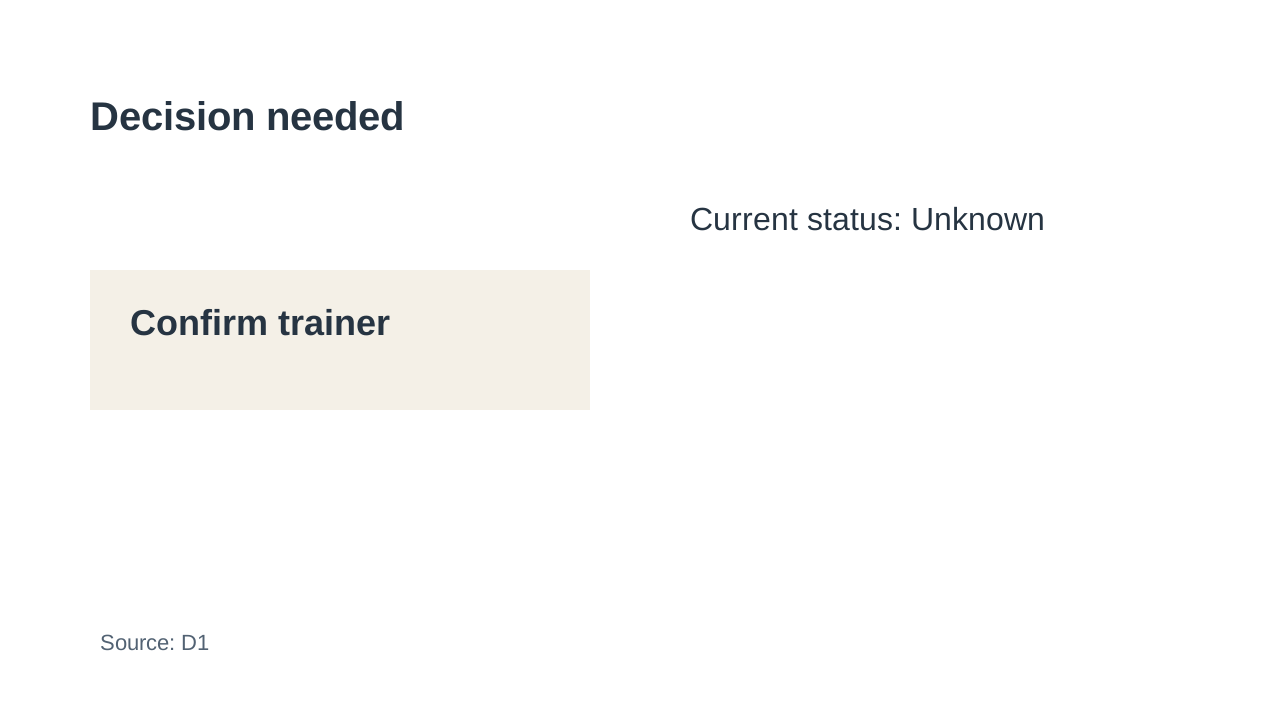

The revision groups the decision with the status that qualifies it. “Unknown” stays visible in neutral styling. A check mark, a green completion badge or a replacement such as “Trainer confirmed” would imply something D1 does not establish.
This is a grouping decision, not evidence that readers understand the slide better. You can inspect whether the two objects are together and whether the status survived; audience comprehension would require a separate review with actual readers.
Follow one change down to its object
The status on slide 3 is an actual text element in each SVG, with the same ID and literal string. Here are the relevant attributes from the two source files:
<!-- s3-before.svg -->
<text id="s3-status" x="690" y="230" font-family="Arial, sans-serif"
      font-size="32" font-weight="400" fill="#263442">Current status: Unknown</text>

<!-- s3-after.svg -->
<text id="s3-status" x="104" y="390" font-family="Arial, sans-serif"
      font-size="36" font-weight="400" fill="#263442">Current status: Unknown</text>
The anchor moved from (690, 230) to (104, 390), and the font size changed from 32 to 36. The text did not change. You can make this same source edit in a copy of the before SVG and render it to inspect that one movement; the complete after file also contains the other inventoried formatting changes.
This demonstrates an SVG source change, not a PowerPoint operation. Importing that SVG into a presentation might leave you with one graphic rather than the text objects you want. Inspect the actual returned file in the editor you will use.
The companion before inventory, after inventory and object diff include all 22 objects, their exact attributes and source bindings. For example, s2-morning-value moves from (130, 335) to (104, 340), with its font size changing from 40 to 36; “3 seats requested” is preserved. These IDs belong to this example. A file editor must map them to observed objects in a real deck rather than treating them as native shape identifiers.
Use a complete modification request
Here is the full request for the illustrated revision. To adapt it, replace the source records and complete copy together, identify your baseline file, and select one output route. The default here is a proposal because no native deck is supplied.
Refine this existing three-slide briefing while preserving its content.

Selected route: LAYOUT PROPOSAL ONLY.
Goal: make the existing information easier to scan through consistent
hierarchy, alignment and grouping. Do not develop a new narrative.

BASELINE AND INPUTS
The supplied baseline is the authored static model in s1-before.svg,
s2-before.svg and s3-before.svg, in that order. objects-before.json lists
its objects. fixed-content.json is the content authority; it was fixed
before the drawings. The source records below are fictional editorial
materials, not actual workshop or customer records. No native PPTX is
supplied, and the SVG IDs are not native slide object IDs.
Use only this packet. Do not fetch other material or add product claims.

SOURCE RECORDS
C1, Coordinator brief: The workshop has two sessions: Morning and Afternoon.
R1, Request register, row 1: Morning: 3 seats requested.
R2, Request register, row 2: Afternoon: 2 seats requested.
D1, Decision log, item 1: Decision needed: confirm trainer.
    Current trainer status: Unknown.
T1, authored manual derivation: 3 + 2 = 5 seat requests across sessions.
    This is not a count of distinct people, attendance or confirmed bookings.

EXACT COPY AND READING ORDER
Slide 1:
s1-title: Workshop overview
s1-sessions: Two sessions
s1-total: Five seats requested in total
s1-source: Sources: C1; R1-R2; T1

Slide 2:
s2-title: Seat requests
s2-morning-label: Morning
s2-morning-value: 3 seats requested
s2-afternoon-label: Afternoon
s2-afternoon-value: 2 seats requested
s2-total: Total: 5 seats requested
s2-source: Sources: R1-R2; T1 (3 + 2 = 5)

Slide 3:
s3-title: Decision needed
s3-action: Confirm trainer
s3-status: Current status: Unknown
s3-source: Source: D1

OBJECTS AND ALLOWED CHANGES
Retain every text object listed above as a separate text object. Keep its
ID, exact wording and punctuation, source binding and reading order.
Retain these decorative rectangles: s1-background, s1-panel;
s2-background, s2-morning-panel, s2-afternoon-panel;
s3-background, s3-panel. They do not represent quantities or status.
There are 15 text objects and 7 rectangles in each authored state.
Do not add, delete, merge or duplicate objects. Do not flatten text to an
image or convert it to paths. No charts, photos, check marks or new data.

You may move/resize inventoried boxes and rectangles and change their
font size, weight, text color, fill or stroke. Keep 1280 x 720 SVG units.
Use Arial, sans-serif. Proposed common roles: title 48 bold; body 36
regular; source caption 22 regular. Text #263442, captions #526273,
slide #FBFCFD, decorative panels #EEF3F7. No status color coding.
Title anchors: x80/y125; source anchors: x80/y660 (text baselines).

Slide 1: align both body texts at x104; baselines y280 and y390.
Put the existing panel at x80/y210, width1120/height240.
Slide 2: put both existing panels at y200, width520/height200;
Morning panel x80, Afternoon panel x680. Morning text x104; Afternoon
text x704; label baselines y260 and value baselines y340 for both.
Put the existing total at x80/y520. Equal panel sizes group records;
they must not imply that the seat counts are equal or proportional.
Slide 3: put action and status at x104, baselines y280 and y390.
Put the existing panel at x80/y210, width1120/height240.

RETURN FOR THIS SELECTED ROUTE
Return three proposed SVGs plus their object inventory and attribute
diff from the baseline, and readable previews. Keep the original files.
Explain any conflict instead of silently changing content. Mark these
as authored static proposals. They do not demonstrate native PowerPoint
objects, PowerPoint editability, export fidelity or a completed file edit.

IF I EXPLICITLY CHANGE THE SELECTED ROUTE TO NATIVE FILE EDITING
First identify the supplied master file/revision and confirm the actual
reader/editor can read and write its required object types. Use a copy.
Map the synthetic IDs to observed native objects by slide, exact text
and location; report ambiguous or missing matches before editing.
Do not invent IDs or claim that importing an SVG establishes this map.
If the required native object support cannot be established, return the
proposal and the limitation. Do not replace the deck with slide images.
Return a separately named native candidate and before/after object map,
preserved/changed content report, previews and explicit untested features.
Do not claim the human's editor checks have passed. The owner will select
and edit sample text and shapes, undo the probes, save/close/reopen, and
compare wording, source captions, slide order and appearance to the master.
No change to Unknown or to 3/2/5 is authorized in either route.
The same complete text is available as a standalone request. You can describe the desired grouping aloud if that helps you explain it, then keep the literal copy and source map as text. Speaking is an optional input method here; it does not remove the need to inspect the deliverable.
Check editability in the editor where you will keep working
For a real file-editing task, review a copy of the candidate alongside the preserved master. Use the following procedure after receiving the file; these editor checks have not been performed for the SVG example.
- Confirm the file and content. Open the returned native file in your intended presentation editor. Compare every slide's text, source labels and order with the master. Check 3, 2 and 5 with their units, and confirm that Unknown remains unchanged. A preview with the right words does not finish this check.
- Inspect the actual object structure. Use the editor's object list or selection controls where available. Locate the title, body and source objects separately. Try entering a text caret in a body line and selecting one word. If you can select only one picture of the slide, record that limitation. Zooming into sharp-looking text is not an editability test.
- Make a reversible text probe. In a disposable copy, append a character to a body text object, then undo it. Inspect other text objects, including source captions. If the editor requires ungrouping an imported graphic, record what object types are present after that step; do not assume it recreated the original structure.
- Probe a shape separately. Select a decorative rectangle, move or resize it, then undo. Check that the text can still be selected independently. A successful rectangle edit does not establish that charts, tables or other object types are editable; inspect each type your actual file needs.
- Save, close and reopen. After undoing the probes and confirming the original copy is restored, save the candidate under a separate name. Reopen it and repeat the content comparison. Check text wrapping, clipping, font changes, source visibility and object placement. Compare slide views or exports as well as the editable objects.
- Record the result narrowly. Note the exact editor, version, file revision, object types inspected and anything unresolved. If a missing font, flattened object or changed value prevents use, fix that candidate or apply the proposal manually to the master. Keep an untested feature marked unknown.
You can use the companion blank inspection record to keep those observations. It contains no claimed native-editor results. The rendered SVG previews establish only how these static drawings look under the local renderer.
For this workshop example, the useful outcome is specific: the same three slides, the same source-backed copy, and a proposed arrangement whose changes can be traced object by object. Choose manual application if that is enough. Choose a file-editing route when you need a native candidate and can inspect what came back before replacing your working deck.