Turn a Rough Process Sketch into an Editable Flow Diagram
Drafted and reviewed using AI assistance.
On this page
To turn a rough process sketch into a diagram you can keep editing, first recover its nodes and connections, ask about unclear arrows, and then create a file that retains separate shapes and connectors. A clean picture can help explain the flow, but it does not give you those editable objects.
For a small sketch, redrawing the shapes in a familiar editor may be enough. A text description such as Mermaid is useful when you want to inspect relationships before arranging the diagram. If you ask an assistant to help transcribe an image, treat its proposed structure as something to compare with the sketch. An unclear arrow still needs an answer from the person who knows the process.
This example uses an original fictional service-request sketch, drawn for this guide. It contains eight nodes, two decisions and one return loop. It is not a real customer's workflow, an image-recognition result or evidence of an automatic conversion.
Find the arrow that needs a question
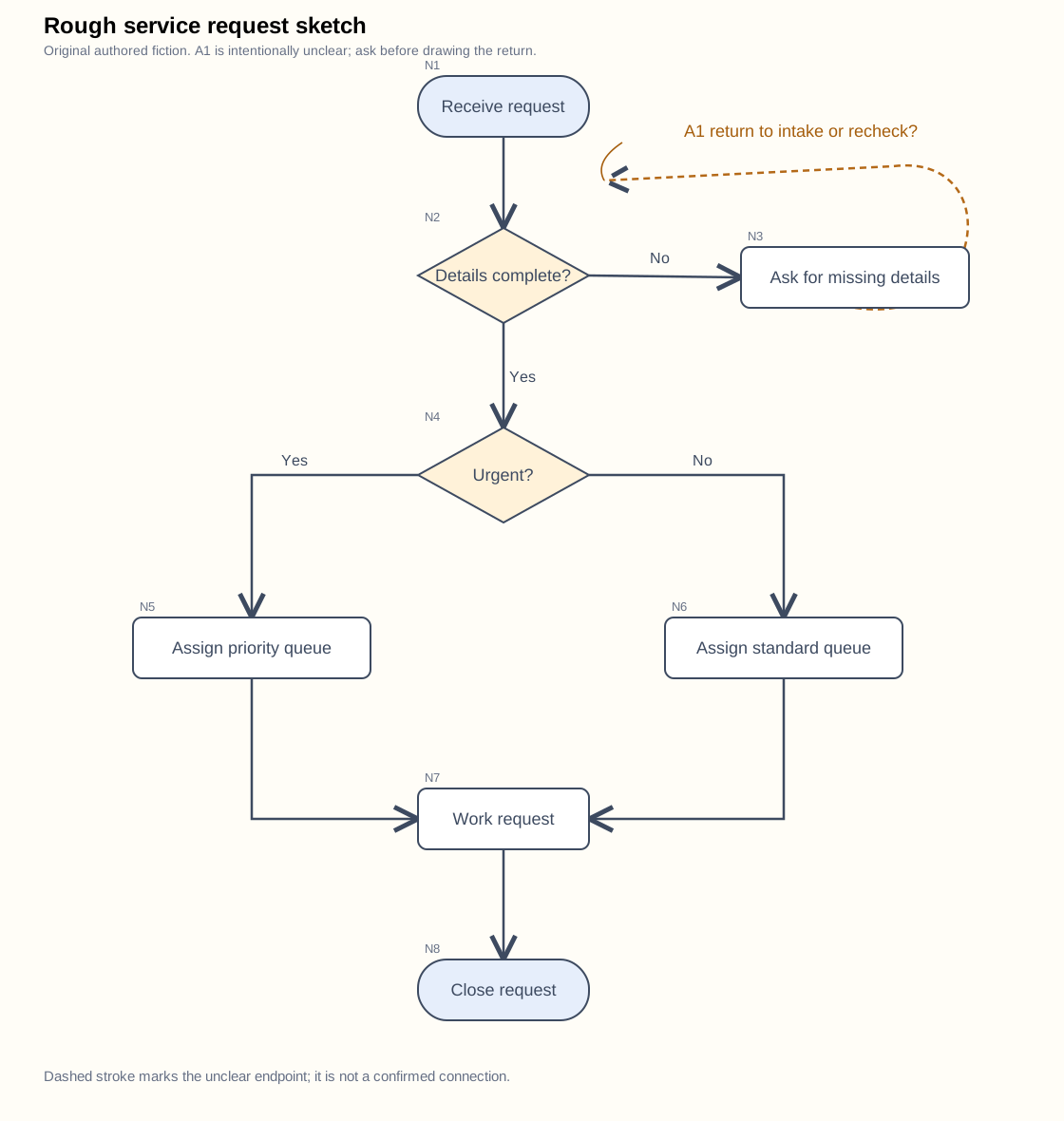
The main flow is readable: receive a request, check its details, choose a queue, do the work and close it. The uncertainty is the return from Ask for missing details. Its line ends between Receive request and Details complete?, without touching either shape. Both interpretations can produce a plausible-looking diagram, so layout alone cannot settle it.
Keep this edge unresolved while asking one specific question:
After the missing details arrive, does the arrow return to “Receive request” or “Details complete?”
The fictional diagram author's clarification is:
Return to “Details complete?” It is the same request; do not create a second intake.
This establishes the return as N3 → N2. It also explains why the choice matters: returning to intake would introduce a different process. The clarification does not add a new node or authorize extra automation.
In your own sketch, an ambiguous line might instead be a crossing, an arrow pointing in the other direction or a connection to a whole group. Record the alternatives rather than drawing a junction to make the layout fit. If no one can resolve it, leave that relationship visibly pending.
Write down every node and edge
Stable IDs let you discuss a relationship without relying on “the box on the right.” The IDs below belong to this example; use labels that the process owner recognizes in the finished diagram.
| ID | Exact label | Role |
|---|---|---|
| N1 | Receive request | Start |
| N2 | Details complete? | Decision |
| N3 | Ask for missing details | Action |
| N4 | Urgent? | Decision |
| N5 | Assign priority queue | Action |
| N6 | Assign standard queue | Action |
| N7 | Work request | Action |
| N8 | Close request | End |
The confirmed edge table is the structural reference for the diagram:
| Edge | From | To | Label |
|---|---|---|---|
| E01 | N1 | N2 | — |
| E02 | N2 | N3 | No |
| E03 | N3 | N2 | Details received |
| E04 | N2 | N4 | Yes |
| E05 | N4 | N5 | Yes |
| E06 | N4 | N6 | No |
| E07 | N5 | N7 | — |
| E08 | N6 | N7 | — |
| E09 | N7 | N8 | — |
There are nine edges. Both decisions have an explicit Yes and No route. The return loop rechecks completeness; it does not close the request. The two queues converge on the same work step, with no extra decision at that merge.
Keep the unconfirmed edge record and the clarification if you need to explain how that one relationship was resolved. The complete case model contains the final labels and connections.
Create the complete Mermaid description
The confirmed structure can be expressed without guessing any additional step:
flowchart TD
  N1(["Receive request"])
  N2{"Details complete?"}
  N3["Ask for missing details"]
  N4{"Urgent?"}
  N5["Assign priority queue"]
  N6["Assign standard queue"]
  N7["Work request"]
  N8(["Close request"])
  N1 --> N2
  N2 -->|No| N3
  N3 -->|Details received| N2
  N2 -->|Yes| N4
  N4 -->|Yes| N5
  N4 -->|No| N6
  N5 --> N7
  N6 --> N7
  N7 --> N8
The same source is available in confirmed.mmd. Treat the text as a description of the confirmed graph, not as proof that an editor imported it correctly. Check the generated relationships before spending time on fonts and spacing.
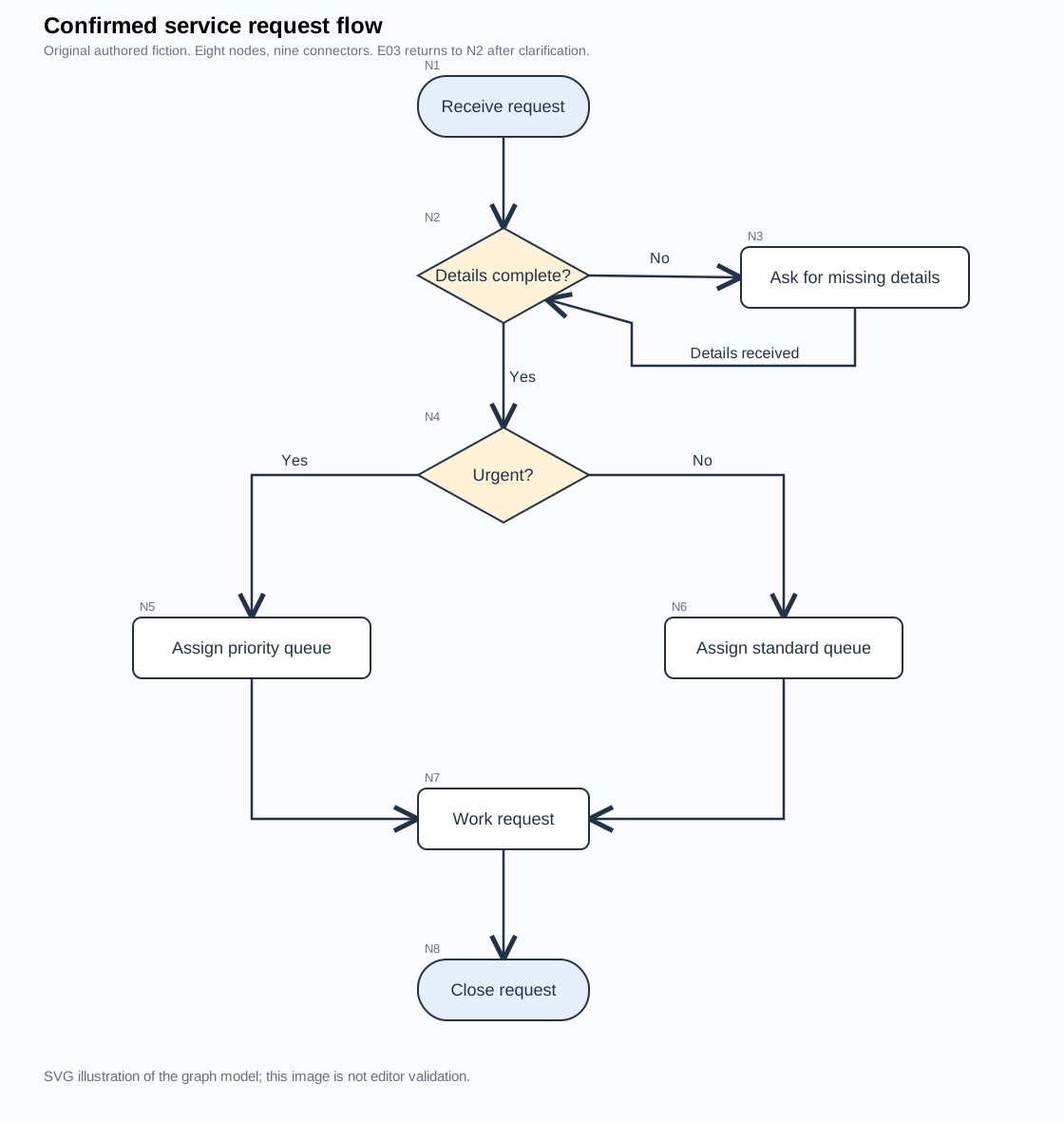
The second illustration makes the return explicit. It is rendered from the authored case model, not captured from a diagram editor. Its purpose is to make the agreed relationships easy to compare with the rough sketch.
Choose shapes when you need object editing
The draw.io Mermaid manual documents Arrange → Insert → Mermaid. Its Diagram option creates shapes and connectors; Image creates one SVG. Source regeneration resets geometry and connector paths, while ungrouping removes the stored Mermaid source. Keep a separate source copy before changing that representation.
Choose the output for your next task. If the diagram is only an illustration in a document, an image may be sufficient. If you need to rename a node or reroute a connector independently, use an object-based diagram and inspect those operations. Changing Mermaid text and regenerating an image is a different editing route.
For this example, service-request.candidate.drawio is the canonical diagram source, with eight separate vertex cells and nine edge cells whose source and target IDs preserve the confirmed graph. It keeps the labels in the tables above. A recorded editing check opened this exact file and saved a separate validation copy; the result and the suggested checks below have different scopes.
The official file-opening guide describes File → Open From. For a local copy, the storage guide identifies Device as the local-device destination. This example does not require connecting a cloud drive.
Distinguish the recorded editing result from suggested checks
The recorded validation session used the diagrams.net web editor in Google Chrome and the local Device file route. In a separate copy, N7 was changed to Work request (edit check) and moved 50 drawing units to the right. E03 was independently relabeled Details received (edit check). The copy was saved, the diagram tab closed, and the saved file reopened through Device. The validation record reports that N7 and E03 could then separately enter text editing again.
The saved validation copy retains eight nodes, nine edges and all connector endpoints, including E03 N3 → N2. Its added words and node movement are intentional editing probes, not changes to the confirmed process. Start from the canonical diagram when you want the original labels and layout.
That recorded check covered N7 and E03. It did not test undo, the E06 label, connector rerouting or every object in the diagram. Exact editor/browser versions were not recorded. The reader result keeps the file roles and observed operations together.
Suggested checks on your own copy
The following is a procedure you can try, not a claim that every step was performed in the recorded session. Use a disposable copy so the exercise does not silently change the confirmed process. Keep the edge table beside it.
- Open and compare the whole graph. Open the candidate in diagrams.net using the local-device route. Locate all eight labeled nodes and nine connectors. Follow the arrowheads and the two pairs of branch labels. Check E03 especially: it must end at Details complete?, not Receive request. An XML parser finding nine edge records does not perform this screen check.
- Edit one node on its own. Select Work request and temporarily change its label to Work request PROBE. Confirm that this changes one node's text, without replacing the whole diagram. Undo the change and confirm Work request is restored. If you can select only one picture, record that result rather than calling it node editing.
- Edit one connector on its own. Select the No connector from Urgent? to Assign standard queue. Temporarily change that connector's label to No PROBE, then undo. Inspect its source and destination again. You can also move a bend as a separate geometry test, but a readable label alone does not show where the connector attaches.
- Save a separate candidate and reopen it. After undoing the probes, save a new local
.drawiofile. Close the document and open the saved file again, rather than relying on the still-open canvas. Recheck the node labels, the two decisions and E03's return destination. Select a node and connector again to check that separate editing survived the save. - Keep the result specific. Record the file hash, editor and observed outcome. If opening or saving fails, keep that stage unresolved. A successful test of this small diagram would apply to this file and those operations; it would not establish support for every Mermaid type or another application's native format.
The N7/E06 edits followed by undo in this suggested procedure differ from the recorded N7/E03 edits that were kept in the validation copy. Keep your own result specific to the file and operations you actually checked. Neither the static illustration nor this example establishes automatic sketch recognition or a Mermaid-import result.
Repair a plausible misreading before polishing
Suppose a transcription chooses the other possible return:
flowchart TD
  N1(["Receive request"])
  N2{"Details complete?"}
  N3["Ask for missing details"]
  N4{"Urgent?"}
  N5["Assign priority queue"]
  N6["Assign standard queue"]
  N7["Work request"]
  N8(["Close request"])
  N1 --> N2
  N2 -->|No| N3
  N3 -->|Details received| N1
  N2 -->|Yes| N4
  N4 -->|Yes| N5
  N4 -->|No| N6
  N5 --> N7
  N6 --> N7
  N7 --> N8
This complete wrong-return example still has eight nodes and nine edges. Counting objects would miss the mistake. Follow one scenario instead: a request lacks a detail, the person supplies it, and the next step should recheck that same request. The incorrect edge sends it back to intake.
The correction is one destination change:
-  N3 -->|Details received| N1
+  N3 -->|Details received| N2
The repair diff makes the change explicit. This is an authored counterexample, not a failure observed from a particular AI tool. It shows why a plausible diagram still needs a relationship check.
Try three more paper traces against the final table: complete urgent requests pass through the priority queue; complete nonurgent requests pass through the standard queue; details that are still incomplete repeat the missing-details loop. Each route must reach Work request before Close request, except while waiting for information. These are structural walkthroughs of the fictional model, not execution of a service system.
Give an assistant a bounded reconstruction task
Use the complete reconstruction request with this sketch and case. It includes every node, the initially unresolved edge, the author's answer, the final edge table and the expected deliverables. For another sketch, replace those inputs together; do not leave this example's answer attached to a different arrow.
The important instruction is to separate what can be read from what must be asked. Request a node table and an edge table before a final drawing. Require an unresolved target to stay unresolved until clarified. Ask for the source file and state which editing operations need checking, rather than asking only for “an editable image.”
For a few clear boxes, manual redrawing may be the shortest route. For an unclear or densely connected sketch, start with a legible source and questions for its author. The useful result is a diagram whose connections you can explain and whose separate objects you can edit in the application where you will continue working.