
Format a Long Word Document Without Changing the Text
Drafted and reviewed using AI assistance.
On this page
To format a long Word document without changing its wording, keep one complete manuscript as the text authority, map its outline to native heading styles, and preserve paragraphs and table cells in their original order. Build the table of contents from those headings. Before sharing the file, compare its content with the manuscript and check every page of the preview.
This guide works through a complete exhibition essay rather than a short excerpt. The finished example includes a title, two heading levels, a table that continues across pages, a running header, page numbers and a populated automatic table of contents. You can follow the same process manually in a document editor or give the complete input to an assistant that can create editable DOCX files.
Start with the editable example and its complete six-page PDF preview. The original essay and all exhibits are fictional, created for this exercise. The deliberately wrong document is an authored teaching example, not an output collected from an AI model.
Keep a complete manuscript separate from the formatting request
The problem is familiar: you ask for formatting, then discover that a paragraph has been shortened or rewritten. One public question about ChatGPT document formatting describes unwanted wording changes. It is one older account, not a measurement of how often the problem occurs. The practical concern is useful, though: attractive pages do not establish that the original text survived.
For this example, the complete fixed manuscript contains 47 content blocks: one title, 12 headings, 33 prose paragraphs and one table. The table contains 12 invented objects plus a header row. Its place between two prose paragraphs is part of the source, just as much as the words in its cells.
Save your own final manuscript separately before formatting. If you later approve a wording change, make it explicitly in that source. Avoid having one file control the text while a different chat message quietly supplies a new version of a sentence.
The format requirements specify A4 pages, margins, type sizes, heading levels and table behavior. They also identify generated additions: the Contents label, contents entries, running header, page numbers and layout whitespace. These should not be mistaken for extra manuscript paragraphs when comparing the files.
Map the outline to real Word heading styles
A heading has a structural role as well as an appearance. Making a paragraph bold and larger can make it look like a heading while leaving it as ordinary body text. That matters when you want navigation and an automatic table of contents to follow the outline.
Use the source hierarchy consistently:
| Source element | Word structure in this example |
|---|---|
| The single manuscript title | Title |
| Main sections such as Containers and the expectation of return | Heading 1 |
| Subsections such as The empty bottle | Heading 2 |
| Each prose paragraph | A separate body paragraph |
| The four-column object inventory | One editable table in its original position |
In Word, select a heading paragraph and apply the appropriate built-in heading style. Adjust that style's appearance if necessary, rather than imitating it with direct formatting alone. Open the document's navigation view and check that sections and subsections appear in the expected order. The title remains separate from the two levels included in this example's contents.
The repaired file contains six Heading 1 paragraphs and six Heading 2 paragraphs. This is a property of its native paragraphs, not a count of bold lines in the PDF.
Build the table of contents from the headings
Microsoft's table-of-contents guidance explains that an automatic contents table is based on document headings and can be updated when those headings change. A manually typed contents list uses a different mechanism and does not acquire that behavior merely by looking similar.
After applying the heading styles, place the cursor where the contents should go and insert an automatic table of contents through the editor's References controls. Include the heading levels you actually want readers to navigate. Update it after the document has been laid out; choose a full update when heading text or the outline has changed.
In the example, the contents occupies the first page and the essay starts on page 2. Its 12 entries run from Entering the exhibition to Keeping an ending open. The repaired DOCX contains an automatic TOC field and populated entries saved after an update in WPS. The preview shows their current page numbers.
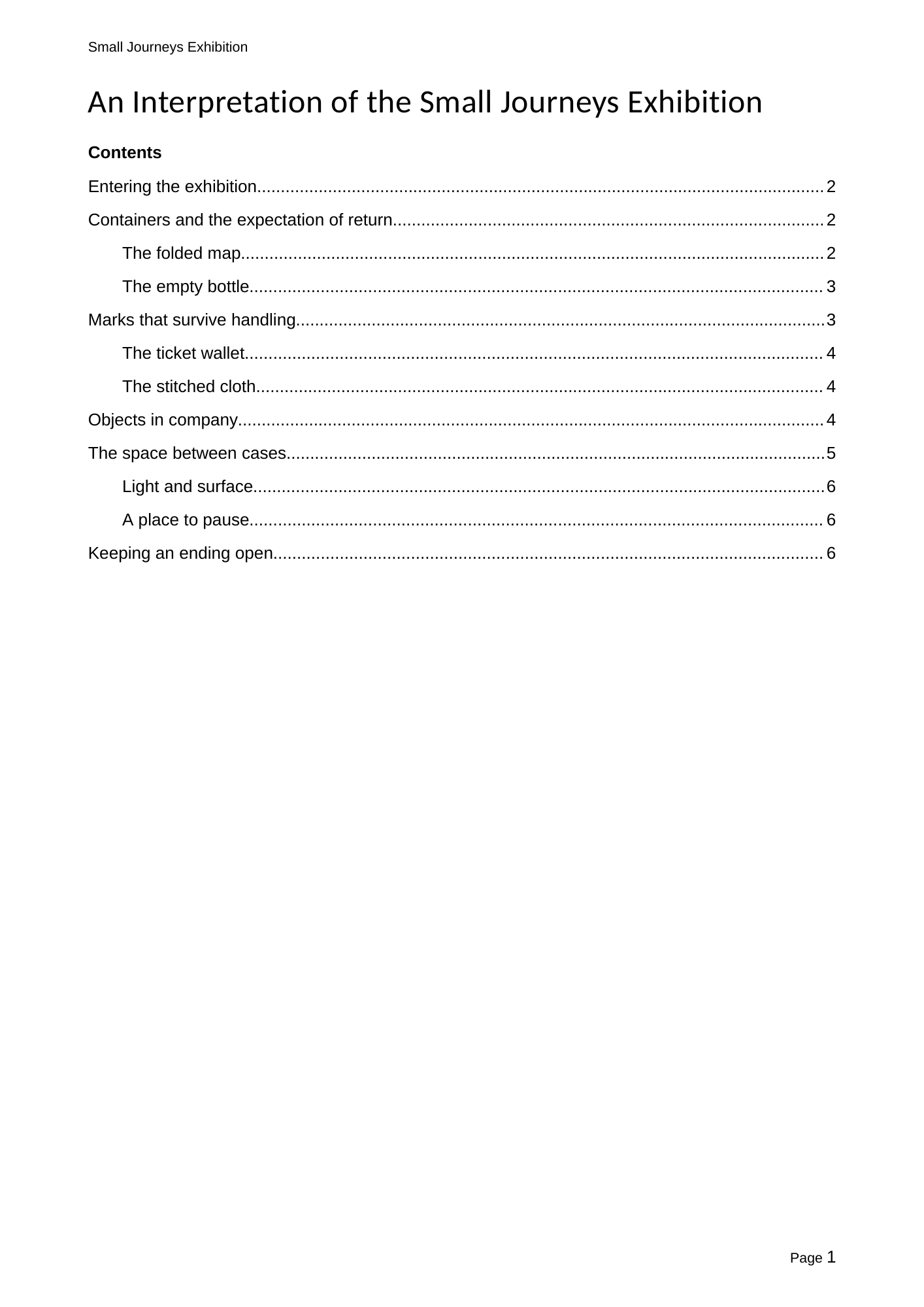
For your own final file, make one small reversible test in the editor you will use: temporarily rename a body heading, update the entire contents table, and confirm that its entry changes. Restore the original heading, update again, save, close and reopen. Change the body heading, not the generated entry on the contents page. This checks continuing update behavior as well as the current display.
Keep the table editable when it crosses a page
The essay's inventory belongs inside the document as a table. Replacing it with a screenshot would preserve an appearance while making ordinary cell edits and text selection harder. Rebuilding it as several unrelated tables would also make the source sequence harder to maintain.
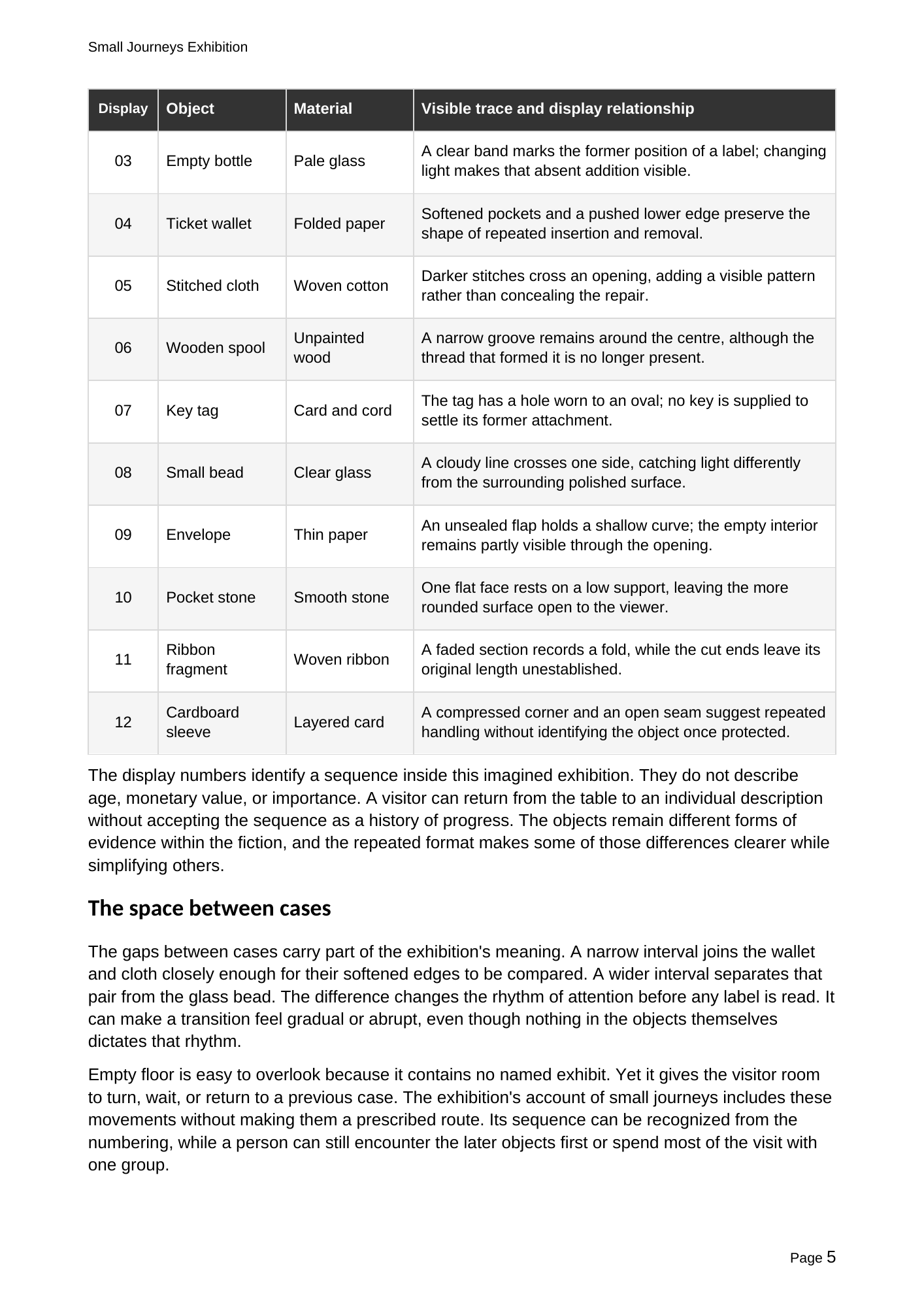
The example keeps all 13 rows and four columns in one native table. The description column receives the most width; the display-number column is compact. The header repeats on the next page, and individual rows are kept together where possible. Rows can expand for their text instead of being forced into a height that clips the last line.
When checking your file, click inside a cell and confirm that the editor treats it as a table. Then inspect the page transition: the next row should continue the sequence, with the same column order and a repeated header. Do not count the repeated visual header as an extra data row.
In this preview the table continues from page 4 to page 5. Page 5 also shows the paragraph that follows the table, so you can check that the prose resumes in its original position.
Repair the complete document using the original text
Download the complete wrong DOCX and the complete repair request. Keep them together when trying the exercise. The request contains the entire original essay, the full format specification and the wrong document's visible text. The DOCX supplies the native structure that a plain-text inventory cannot show.
The wrong document has three deliberate defects:
| Defect | What the repair must do |
|---|---|
| A whole paragraph beginning The bottle does not reveal what it once contained is missing | Restore the exact paragraph from the manuscript, between its original neighbors |
| The empty bottle is an ordinary paragraph with bold formatting | Apply native Heading 2 while preserving the exact heading text |
| Contents entries are typed text and all show page 99 | Replace them with a heading-based automatic table of contents and update it |
The omitted paragraph is easy to miss because the surrounding prose still reads smoothly. Here is its complete original text:
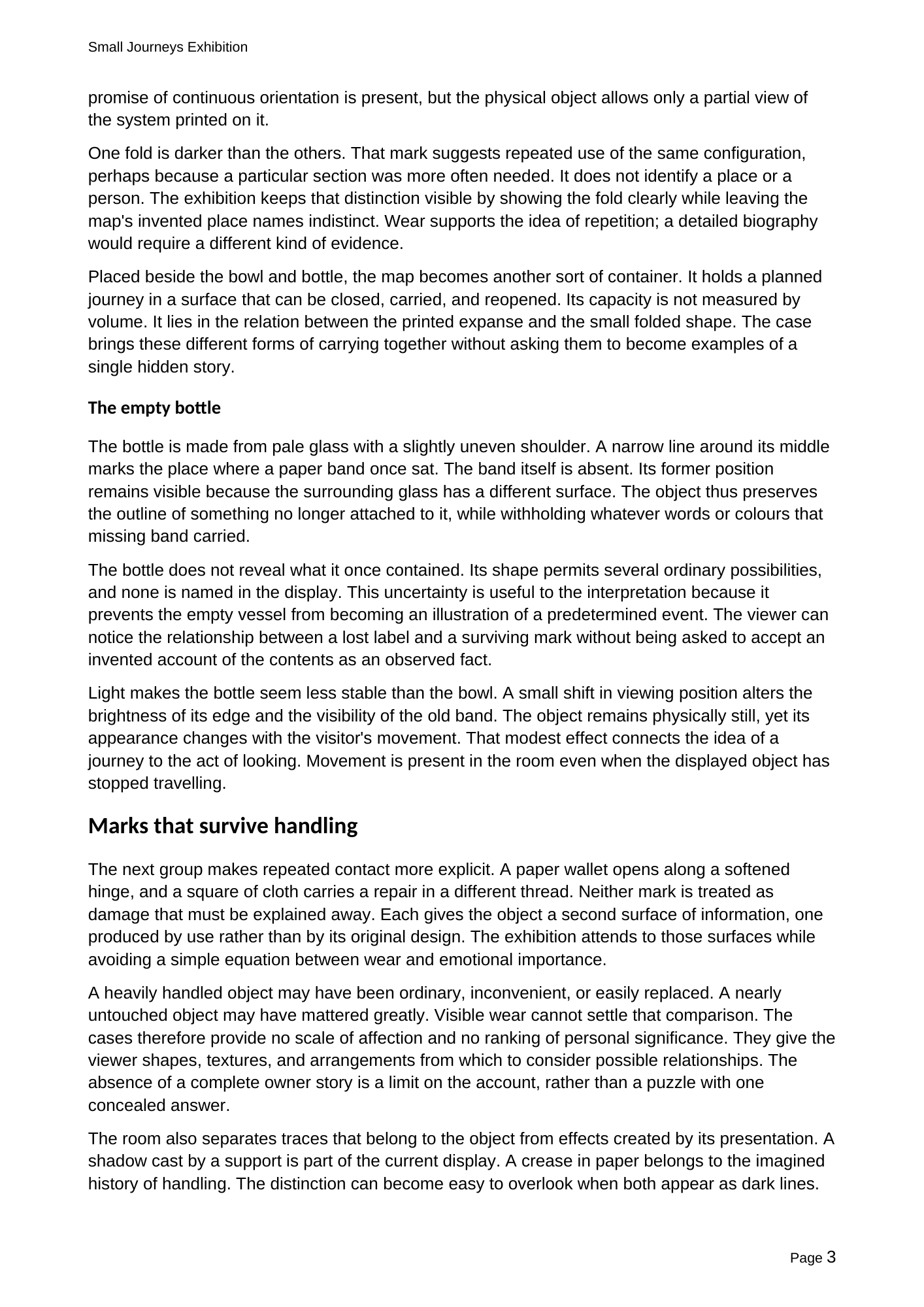
The bottle does not reveal what it once contained. Its shape permits several ordinary possibilities, and none is named in the display. This uncertainty is useful to the interpretation because it prevents the empty vessel from becoming an illustration of a predetermined event. The viewer can notice the relationship between a lost label and a surviving mark without being asked to accept an invented account of the contents as an observed fact.
A useful repair returns the whole document with this paragraph in place. It does not merely comment that a paragraph is missing, rewrite a substitute from memory, or supply only the corrected heading. The repaired DOCX demonstrates the complete result. Page 3 of the preview shows the restored paragraph under the correctly styled subsection.
If your assistant cannot create or update native document fields, use it to identify the missing text and structure, then apply those changes in your editor. Keep the actual field-update step visible in your workflow rather than accepting an assurance that the contents will work later.
Compare content and inspect layout separately
First compare the source and the DOCX as content. Read each body paragraph in order, check the heading hierarchy, and compare every table cell. The repaired example's 47 original blocks match the fixed manuscript exactly after joining text runs and trimming paragraph-end whitespace. Formatting runs may split a sentence internally without changing its words.
Keep generated front matter out of that comparison. A section name can legitimately appear both in the contents and as a body heading. Likewise, running headers and page numbers repeat across pages without being part of the essay. A simple count of all text occurrences can confuse those additions with duplicated prose.
Next inspect the complete page preview. Check the first and last lines of each page, headings near page breaks, the table continuation, and the space between the running header, body and footer. A successful text comparison will not reveal a clipped table cell; a clean screenshot will not prove that a paragraph was preserved.
The attached preview has six pages, all inspected. It was rendered with the bundled LibreOffice renderer. The initial automatic-contents update and save were performed in WPS; Microsoft Word was not used. The temporary-heading update, restoration and save-close-reopen test described above remains uncompleted for this sample, so continuing update behavior is not presented as verified.
Use a request that describes the document you need
For a new manuscript, supply the complete text and a short structural instruction alongside the visual requirements:
Format the complete supplied manuscript as an editable DOCX.
Preserve its exact wording, paragraph boundaries, heading hierarchy,
table cells and block order. Do not summarize, rewrite or omit content.

Apply native Title, Heading 1 and Heading 2 styles to the mapped source
levels. Keep the inventory as one editable table with a repeated header.
Create an automatic table of contents from the specified heading levels
and insert real page-number fields.

Compare the complete document with the source and inspect every preview
page. State which editor actually updated the contents and which checks
remain unfinished. Return the whole DOCX and a complete preview.
The short instruction defines the task; it does not replace the manuscript. For this exercise, use the downloadable repair request, which already includes the complete inputs. For your own work, supply your entire manuscript and its specific format requirements with the instruction.
Before handing the file to another reader, open it in the editor they will use, refresh the contents, and read the opening page, a table continuation and the ending. Share the editable DOCX when further editing is expected, with the PDF as a reference for the intended page layout.